



5 Common eSIM Issues and Solutions
https://www.zimconnections.com/5-common-esim-issues-and-solutions/
 SHARE
SHARE
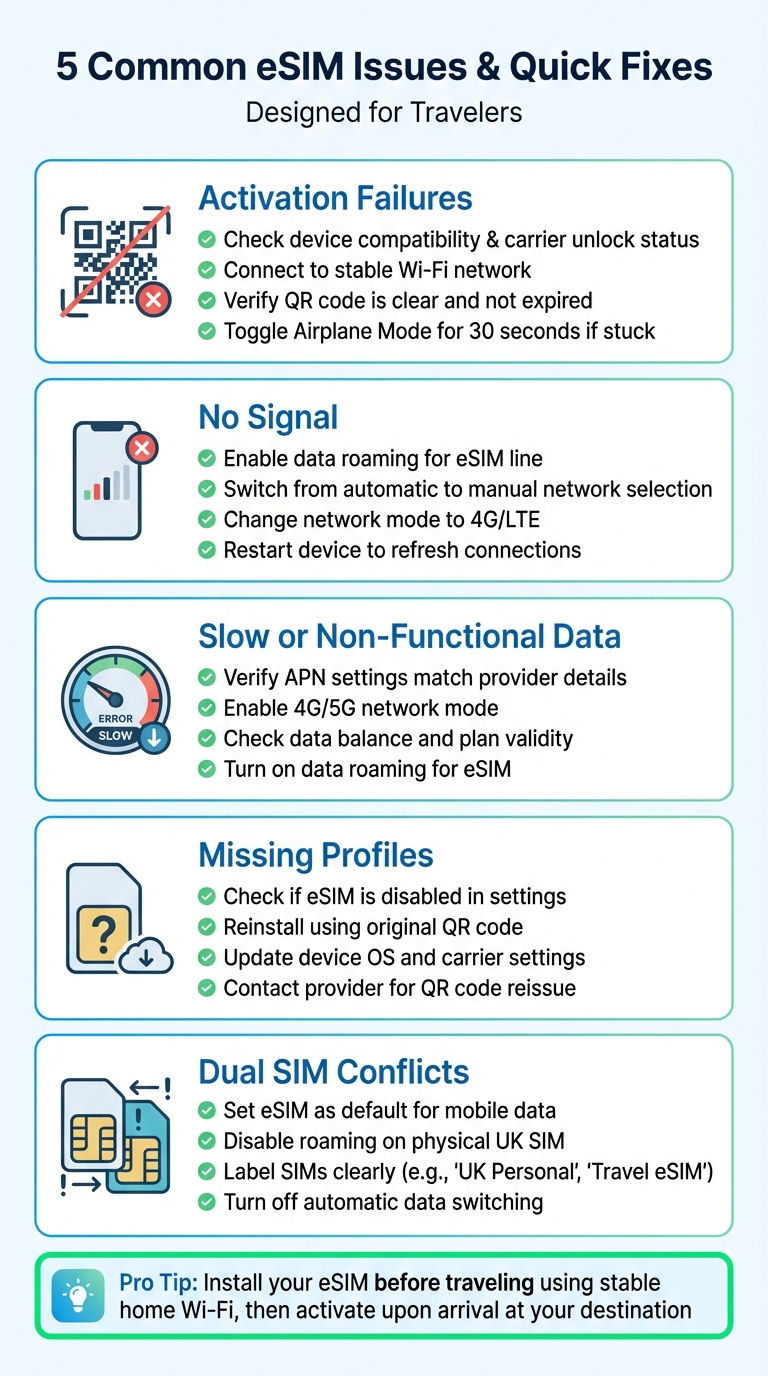
eSIMs make switching mobile plans easier, especially for travellers. But they can come with problems like activation errors, no signal, slow data, missing profiles, or dual SIM conflicts. These issues are often easy to fix with basic troubleshooting. Here’s a quick look at common eSIM problems and how to solve them:
- Activation Failures: Check device compatibility, ensure it’s unlocked, and use stable Wi-Fi.
- No Signal: Enable data roaming, check network settings, and switch to manual network selection if needed.
- Slow or Non-Functional Data: Verify APN settings, enable 4G/5G, and ensure your plan has data left.
- Missing Profiles: Reinstall the eSIM using your QR code or contact your provider for help.
- Dual SIM Conflicts: Set the eSIM as your default for data, disable roaming on your physical SIM, and label SIMs clearly.
Prepare before travelling by testing your eSIM setup at home, saving activation details offline, and ensuring your device is compatible and unlocked. These steps can save you from connectivity issues abroad.
5 Common eSIM Issues and Quick Fix Solutions for Travelers
eSIM Not Working On iPhone? Here’s the FIX!
How eSIMs Work: A Quick Overview
An eSIM (embedded SIM) is a small, rewritable chip built directly into your device. It works just like a physical SIM card by authenticating your device for calls, texts, and data. The key difference? It allows you to download digital profiles, making it perfect for setting up local plans before you even leave home.
Before using an eSIM, check that your device is compatible. Not all smartphones or tablets have the necessary hardware, so it’s worth confirming in your device’s settings or specifications. Additionally, your phone usually needs to be unlocked from your UK carrier to accept an eSIM from another provider – this is particularly important for international plans. A stable internet connection is essential during activation because the eSIM profile and network settings need to be downloaded in one go. Losing connection mid-activation can cause errors, so it’s best to ensure a reliable connection before you begin. Now, let’s explore the features that make eSIMs so practical.
Key Features of eSIMs
One standout feature of eSIMs is their ability to store multiple profiles on a single device. They also support dual SIM functionality, allowing you to keep your primary UK number active while using a local data plan abroad. This means you can manage separate lines for work and personal use or maintain your UK voice line while relying on a foreign data plan. Providers like ZIM Connections offer a range of options, including local, regional, and global plans, which are delivered as separate eSIM profiles. This flexibility is ideal for frequent travellers, letting you choose coverage that aligns with your travel plans without the hassle of buying new SIM cards at every destination.
Standard Activation Process
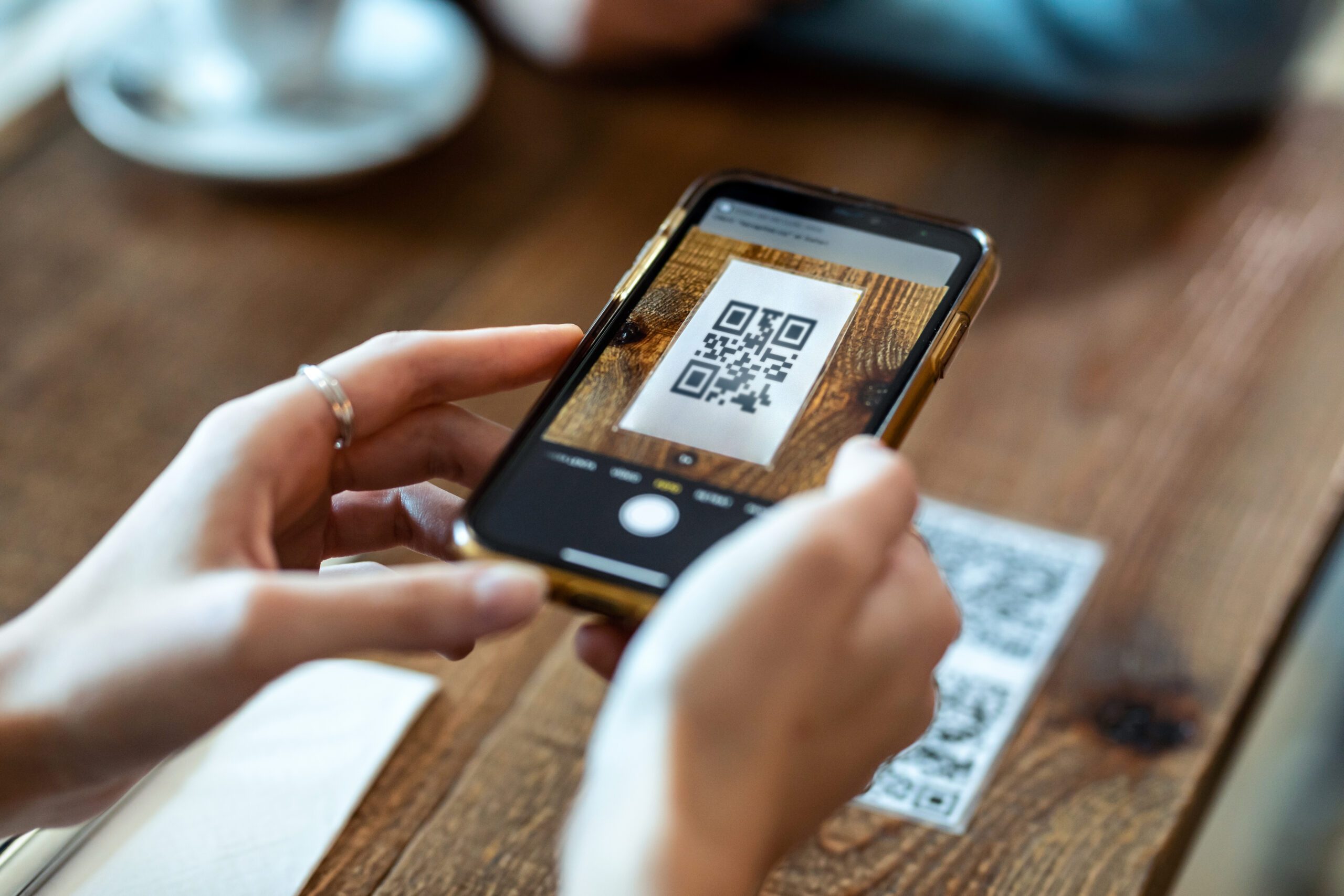
Once you understand the benefits, activating an eSIM becomes straightforward. Most providers send activation details via QR codes, manual codes, or dedicated apps. For QR code activation, you’ll typically receive the code by email after purchasing your plan. Simply open your device’s mobile network or cellular settings, select “Add eSIM” or “Use QR code,” and scan the code to download the profile. For manual activation, you’ll need to enter an SM‑DP+ address and an activation code directly into your eSIM settings. If your provider offers an app, you can download it, log in, select your plan, and let the app handle the activation for you – this is often the easiest option for those less comfortable with tech.
It’s crucial to follow the provider’s instructions step by step. Skipping or rearranging steps can cause the profile to fail during registration. Services like ZIM Connections make this process easier by providing clear activation guides tailored for common iOS and Android menus. They also include helpful features like device compatibility checks and reminders to connect to a reliable Wi‑Fi network before starting the activation. Many guides recommend installing the eSIM profile while you’re still in the UK, where you’re likely to have access to familiar and stable Wi‑Fi. Then, you can activate the profile once you reach your destination, ensuring any potential issues are resolved before you travel. This streamlined approach ensures UK travellers can enjoy hassle-free connectivity wherever they go.
1. eSIM Activation Failures
eSIM activation issues often show up as error messages or prolonged "Activating" statuses on both iOS and Android devices. You might encounter messages like "Unable to Activate eSIM", notice that your phone doesn’t recognise the new profile after scanning the QR code, or see the activation process stuck indefinitely. On iPhones, this typically happens under Settings > Mobile Data > Add eSIM, where the plan either fails to install or remains inactive. Android users face similar problems under Settings > Network & Internet > SIMs, where the eSIM line may be missing, disabled, or stuck on "Searching for network".
Why Activation Fails
One of the most common reasons for failure is device incompatibility. Not all smartphones support eSIM technology, and even some newer models sold in the UK may have regional variations that lack the necessary hardware. Always verify your phone’s compatibility by checking the exact model on both the manufacturer’s website and your provider’s compatibility list. If your device isn’t listed, it simply won’t work, no matter what troubleshooting steps you try.
Carrier locks are another frequent obstacle. UK networks like EE, O2, Vodafone, and Three often lock devices, preventing eSIM activation from other providers, including international travel eSIMs. You’ll need to contact your carrier to request an unlock, even if your contract has ended, as UK operators don’t always unlock devices automatically.
Other issues include unstable internet connections during activation, which can interrupt the download of the eSIM profile and network settings. Problems with QR codes – such as unclear images, scanning the wrong code, or using expired or already-used codes – can also block activation. Additionally, entering incorrect activation codes, attempting to activate unpaid or expired plans, or trying to set up a location-specific eSIM (like a US-only plan) while still in the UK can all result in silent failures.
How to Fix Activation Problems
If you’re dealing with activation failures, these troubleshooting steps can help resolve the most common issues on UK devices.
Start by ensuring the basics are covered: confirm your device supports eSIM, is unlocked, and that your plan is active and fully paid. A strong and stable Wi-Fi connection is essential – activation won’t work without it. On iPhone, go to Settings > Mobile Data > Add eSIM (or Add eSIM via QR code). On Android, navigate to Settings > Network & Internet (or Connections) > SIMs > Add eSIM, then choose "Use QR code". When scanning the QR code sent by your provider, make sure it’s clear, fills the frame, and that your screen brightness is high enough. Keep in mind that menu labels can vary slightly depending on the device – Samsung uses "Connections", while Google Pixel opts for "Network & Internet" – but the general process is similar.
If activation seems stuck, try toggling Airplane Mode for 30 seconds. This simple action resolves most "stuck on activating" issues. If that doesn’t work, restart your phone and attempt the activation again. A reboot often forces the device to reconnect to the network, clearing up lingering issues.
Once activated, check that the new eSIM line is enabled and set for mobile data in your settings. If you’re abroad, make sure Data Roaming is turned on for that specific eSIM line – this is a separate setting and easy to overlook.
If none of these steps work, you may need to remove and reinstall the eSIM profile. On an iPhone, go to Settings > Mobile Data > [your plan] > Remove eSIM, restart your phone, and then scan the original QR code again while connected to Wi-Fi. On Android, head to Settings > SIMs > [eSIM] > Remove, restart, and reinstall the profile. Be aware that some providers only allow QR codes to be used once. If the code becomes invalid after deletion, you’ll need to contact your provider for a replacement. Always check your provider’s policy before removing an eSIM.
For UK travellers using international eSIMs – like the regional and global plans offered by ZIM Connections – it’s a good idea to install the profile before leaving the UK. This ensures you can rely on familiar and stable Wi-Fi during setup. Once installed, you can activate the eSIM upon arrival at your destination. Save a copy of the QR code and activation instructions offline – either as a PDF or a clear screenshot – so you’re prepared even if you lose internet access abroad. Providers like ZIM Connections also offer detailed guides for both iOS and Android, along with compatibility checks and reminders to use reliable Wi-Fi, making the process smoother for frequent travellers.
2. No Signal or Connectivity Problems
Even if your eSIM activates successfully, you might still encounter messages like "No Service", "SOS Only", or "Emergency Calls Only" on your screen. These issues usually stem from network settings or coverage problems rather than faults with the eSIM itself. Essentially, your device detects networks but isn’t connecting to the one it needs. Luckily, most of these issues can be resolved with a few simple adjustments.
What Causes Signal Problems
One of the most common culprits is weak or non-existent coverage. If you’re in remote areas like the Scottish Highlands, rural parts of Wales, or coastal villages, mobile signals can be unreliable or completely absent, no matter which carrier you use. Similarly, indoor locations – think thick stone walls in older UK buildings, basements, underground car parks, or parts of the London Underground – can block or weaken signals. Often, stepping outside, moving closer to a window, or heading above ground solves the issue instantly.
Another common issue is data roaming being turned off. If you’re travelling and using a new eSIM, your phone won’t connect to partner networks unless data roaming is enabled specifically for that eSIM. This setting is independent of your physical SIM’s roaming, so even if you’ve used roaming before, you’ll need to double-check it for the eSIM.
Incorrect network selection can also leave you without service. If your phone is locked to a specific operator with poor coverage in your location – or one that isn’t compatible with your eSIM plan – it won’t connect, even if other networks are available nearby. While automatic network selection generally picks the strongest signal, your device might occasionally stick to a weaker or unsupported network, requiring manual intervention.
Other factors include network outages or maintenance by your carrier, which can disrupt service even in areas that typically have strong coverage. If others around you are experiencing similar issues, or if local news mentions maintenance, the problem is likely on the carrier’s end. Lastly, dual SIM conflicts can cause confusion. For example, if your device prioritises your UK physical SIM over the eSIM for calls or data, this can make it seem like the eSIM has no signal when it’s simply not being used.
How to Restore Connectivity
Start with the simplest solutions: toggle Aeroplane Mode on for 10–30 seconds, then restart your phone to refresh its network connections.
Next, dive into your settings. Ensure the eSIM line is enabled in your mobile data settings and that Data Roaming is switched on. If you’re using dual SIM, set the eSIM as your primary Mobile Data line.
If the issue persists, check your network selection settings. Make sure Automatic network selection is enabled. If it’s already on but you still have no signal, turn Automatic off and manually select a network from the list, testing each one until you find a stable connection. This can be particularly helpful when one local network struggles indoors, but another provides better coverage.
Another key step is reviewing your network mode. If your device is set to 5G in an area with only 4G or 3G coverage, it may fail to connect. Switch to 4G/LTE or 4G/3G/2G auto to let your phone adapt to the available signal. Also, verify that your APN (Access Point Name) settings match those provided by your eSIM carrier.
Choosing a provider with broad multi-network coverage can minimise connectivity problems. Services like ZIM Connections offer eSIM plans that connect to multiple partner networks across over 200 destinations. This flexibility allows your device to automatically select the strongest local network while travelling. If one network struggles in a specific area, you can manually switch to another supported carrier within the same plan. With access to 5G and 4G speeds, these providers ensure better connectivity, even in areas where single-network eSIMs might fall short.
Once you’ve resolved signal issues, it’s worth checking your mobile data performance to ensure everything is functioning smoothly.
3. Mobile Data Not Working or Running Slowly
When it comes to mobile data issues, the troubleshooting process can be a bit different from general connectivity fixes. Even when your device shows full signal bars and a 4G icon, you might still face problems like web pages refusing to load, maps freezing mid-navigation, or a sudden drop in speed. These hiccups are especially common with eSIMs but are usually easy to resolve with some targeted checks. Following these steps alongside earlier connectivity tips can help ensure your mobile data is running smoothly.
Why Data Isn’t Working
One of the most frequent reasons for mobile data issues is data roaming being turned off for your eSIM line. Unlike your physical SIM, the eSIM often requires separate settings for data roaming. Even if you’re on a local or regional eSIM plan, your device may treat connections to partner networks as roaming. If data roaming isn’t enabled, your device simply won’t connect.
Another issue could be insufficient data allowances. If you’ve run out of data on your plan, web pages won’t load, and you might even receive a notification from your provider. Some "unlimited" plans come with fair-use limits, which can throttle your speeds significantly – sometimes dropping from the usual 4G speeds (over 20 Mbps) to painfully slow speeds under 1 Mbps, especially after heavy streaming or hotspot usage.
Incorrect or missing APN (Access Point Name) settings can also cause the dreaded “connected but no internet” problem. These settings act as a bridge between your device and the mobile internet. Even a small error in the APN details can prevent your device from establishing a connection, no matter how strong the signal appears.
Additionally, using outdated network modes like 2G or 3G can severely limit your data speed. Many carriers are phasing out these older networks, so sticking to these modes could leave you with little to no data access. On top of that, network congestion during peak hours in busy areas can slow down your speeds drastically, often cutting them by more than half compared to off-peak periods.
How to Fix Data Issues
To get your mobile data back on track, start by checking if your plan is active and has enough data left. Log into your eSIM provider’s app or account portal to confirm your data balance, plan validity, and any restrictions like fair-use limits. If your data has run out or your plan has expired, you’ll need to add more data or purchase a new plan.
Next, make sure data roaming is enabled for your eSIM line. On iOS, go to Settings → Mobile Data → [eSIM name] → Data Roaming and turn it on. For Android users, head to Settings → Network & Internet (or Connections) → Mobile Network / SIMs → [eSIM] and enable roaming. Don’t forget, this setting is separate from your physical SIM’s roaming configuration, so double-check it specifically for your eSIM.
Verify that your device is set to use 4G/5G networks. Many devices have an "Auto" mode that automatically connects to the best available network. If your phone is locked to 3G or 2G, switching to 4G or 5G can make a noticeable difference in speed.
Review your APN settings by comparing them to the ones provided by your eSIM provider. Make sure every field – APN name, username, password, and any additional details – is entered correctly. After making changes, toggle Aeroplane Mode for about 10 seconds or restart your device to apply the updates.
If your data still feels sluggish or unreliable, try switching between automatic and manual network selection. Start with automatic selection, but if that doesn’t help, manually choose another available partner network that might offer better coverage in your area.
Finally, consider choosing an eSIM provider that offers reliable 4G/5G service with unlimited data options. For instance, ZIM Connections provides prepaid plans covering over 200 destinations, giving UK travellers dependable data performance wherever they go.
sbb-itb-273ea09
4. eSIM Profile Missing or Disabled
Dealing with a missing or disabled eSIM can be incredibly frustrating, whether you’re in the UK or travelling abroad. Fortunately, most eSIM issues can be resolved with a few simple steps – once you understand what might have caused the problem. Let’s explore the common reasons eSIM profiles disappear and how to get them back up and running.
Why Profiles Go Missing
One of the most frequent reasons for a missing eSIM profile is accidental deletion. Tapping options like "Remove Cellular Plan" or "Delete eSIM" can permanently erase the profile from your device – unlike a physical SIM, which can simply be reinserted.
Another culprit is operating system updates or resetting device settings. These actions can sometimes corrupt stored eSIM data, resulting in messages like "No service" or "SOS only", or even the complete disappearance of the profile from your SIM manager.
Switching devices or restoring from backups can also remove eSIM profiles. For security reasons, services like iCloud or Google Drive don’t include eSIM profiles in their backups. Additionally, some UK carriers issue QR codes that are valid for one device only, making them unusable on a new device.
Lastly, your carrier or eSIM provider might deactivate or suspend your profile. This could happen if your plan expires, there are unpaid charges, or the eSIM is reported lost or stolen. In some cases, enterprise security policies or Mobile Device Management (MDM) software on corporate devices may block or restrict eSIM functionality.
How to Restore Missing Profiles
If your eSIM profile is missing, don’t panic – there are several steps you can take to restore it. Start by ensuring your device settings are correct.
First, check if the eSIM is simply disabled. On iOS, go to Settings → Mobile Data → SIMs, and ensure the option to "Turn On This Line" is enabled. For Android devices, navigate to Settings → Connections (or Network & Internet) → SIM Manager and confirm the eSIM is present and switched on. If the eSIM appears inactive, toggle Aeroplane Mode on for 30 seconds, then restart your device.
If the profile has been deleted or genuinely vanished, you’ll need to reinstall it. Use the original QR code or activation code provided by your carrier, making sure you’re connected to Wi-Fi during the process. Follow the carrier’s instructions carefully. If you encounter errors like "eSIM cannot be added" or "already in use", contact your provider for assistance. They can reset or reissue the QR code if necessary. Confirm how many times your QR code can be reused and whether additional downloads are allowed.
If the issue arose after a software update or restoring a backup, ensure your device’s operating system and carrier settings are fully updated. You can also try resetting your network settings, but keep in mind this will erase saved Wi-Fi passwords and Bluetooth pairings. After resetting, attempt to reinstall the eSIM.
For UK travellers using international eSIMs, it’s a good idea to take precautions before your trip. Save a screenshot or print-out of your QR code and activation details, and keep your provider’s support contact information handy. If your profile disappears while abroad, you can request a new QR code or remote reprovisioning. For example, with ZIM Connections, you can log in to your account to view existing eSIMs, re-download a plan to a new device, or contact support if your eSIM profile goes missing or won’t activate.
5. Dual SIM Conflicts
Travellers often face challenges when managing dual SIM setups, even after resolving activation and connectivity issues. Combining an eSIM with a physical SIM can be a smart way to manage separate lines – like keeping a UK SIM for calls and pairing it with a travel eSIM for affordable data abroad. However, a common pitfall is your device defaulting to your UK SIM for data, leading to unexpected roaming charges of £3–£6 per day when you return home.
Common Dual SIM Problems
One of the most frequent issues is forgetting to change the default data line after installing a travel eSIM. Many assume that simply adding an eSIM automatically activates it for data use, but that’s not the case. Unless you manually switch the default, your phone will continue using your UK SIM for mobile data, racking up roaming charges while the travel eSIM remains unused.
Another common problem involves outgoing calls and texts being sent from the wrong line. For instance, a freelancer might accidentally set their work line as the default for all calls, showing clients the incorrect caller ID. Similarly, while abroad, you might make a local call using your UK SIM instead of your travel eSIM, resulting in international charges. Messaging apps like iMessage or WhatsApp can also cause confusion if they register on the wrong number, leaving contacts replying to a line that’s inactive during your travels.
Data roaming on both lines can create further headaches. Even if your travel eSIM is set as the default for data, leaving roaming enabled on your UK SIM means it can still connect while abroad. Features like "allow mobile data switching" on some devices can automatically shift data usage to your UK SIM when the travel eSIM signal drops, potentially leading to a hefty bill.
Lastly, vague labelling of SIMs in your phone settings can lead to misconfiguration. If your device lists them as "Primary" and "Secondary" without clear labels like "UK SIM – EE" or "Travel eSIM – Spain", it’s easy to select the wrong one for data, calls, or roaming, especially when hurriedly configuring settings before a trip.
How to Configure Dual SIM Settings
Properly setting up your dual SIMs before travelling can prevent most of these issues. Start by clearly labelling your SIMs and setting your travel eSIM as the default for data. On iOS, go to Settings → Mobile Data, select your line, and assign a descriptive name like "UK Personal", "Work – O2", or "Spain Travel eSIM". Then, return to Mobile Data and choose your eSIM as the default. On Android, visit Settings → Connections (or Network & Internet) → SIM Manager, rename the SIMs for clarity, and set the eSIM for mobile data. The status bar should show the 4G or 5G icon next to the eSIM’s label, confirming it’s active. Always double-check these settings after installing a new eSIM, deleting a profile, or restarting your device, as defaults can reset.
To avoid accidental roaming charges, disable data roaming on your UK SIM. On iOS, go to Settings → Mobile Data, select your UK SIM, and toggle Data Roaming off. For Android, navigate to SIM Manager → [UK SIM] → Mobile Data → Roaming and turn it off. Keep data roaming enabled only for your travel eSIM. If you still need to receive calls or texts on your UK number while abroad, that’s fine – just make sure its data roaming stays off. You can also enable Wi‑Fi calling for your UK line if your carrier supports it.
Decide which line handles calls and texts. On iOS, head to Settings → Mobile Data → Default Voice Line to choose between your UK SIM or travel eSIM for outgoing calls, or set it to "Ask every time" for flexibility. Android users can find similar options under SIM Manager → Calls/SMS Preferred SIM. If your travel eSIM includes a local number, using it for calls can help you avoid international charges on your UK line. For apps like iMessage or WhatsApp, ensure they’re registered to the correct number. On iPhone, check Settings → Messages/FaceTime → Send & Receive to confirm the active line.
Disable automatic data switching to prevent unexpected charges. Many Android devices have features like "Switch data automatically" that move data to the other SIM if coverage drops. While useful at home, this can be risky abroad, as your phone might switch to your UK SIM without warning. Turn off these features when using a dedicated travel eSIM. If coverage is poor, manually connect to another network or rely on Wi‑Fi instead.
Before leaving the UK, follow this checklist: activate your eSIM over Wi‑Fi, test its data connection, set it as the default data line, turn off data roaming on your UK SIM, label both SIMs clearly, and decide which line handles calls and texts. Upon arrival, verify the active data SIM, ensure roaming is disabled for your UK SIM, and check that background updates and hotspot usage are running through the correct eSIM. These steps can save you from unexpected charges and ensure smooth connectivity.
For those using international eSIM providers like ZIM Connections, detailed guides are available to walk you through setting your eSIM as the default data line and disabling data roaming on your UK SIM for both iOS and Android. These instructions help eliminate common billing surprises, ensuring you make the most of your prepaid travel data plan without any hiccups.
How to Prevent eSIM Problems
Avoiding eSIM troubles while travelling is often just a matter of preparation. Issues like locked devices, incompatible phones, unreliable internet during activation, or skipping provider instructions can all be sidestepped with a little planning. A quick checklist before you leave the UK could save you hours of stress abroad.
Prepare Before You Travel
First, make sure your phone is unlocked by your UK carrier and that it supports eSIM technology. You can confirm this by checking your device settings or the manufacturer’s website. Then, check if your destination offers good coverage with your chosen eSIM provider, and verify that the network bands are compatible with your phone.
It’s a good idea to purchase and download your ZIM Connections eSIM plan a few days before your trip while connected to a reliable Wi‑Fi network. This helps you avoid activation issues caused by weak Wi‑Fi signals, which are common at airports or hotels. Once downloaded, test the eSIM setup in the UK to ensure everything works as expected.
Keep Your Activation Details Safe
When it comes to activation, keeping your details secure is key. Save your QR code and activation information in multiple places – store it in a secure cloud drive and print a hard copy to keep with your travel documents. Include any support contact details, and label everything with the destination and expiry date. Make sure you can access this information offline, as some providers only allow the QR code to be scanned once and may require assistance to reissue it if lost.
Adjust Settings After Activation
After activating your eSIM, restart your phone to refresh its network registration. Check your SIM or Cellular settings to confirm that the eSIM line is enabled and set as the active line for mobile data. Decide whether to keep your UK SIM active for calls and texts.
Ensure data roaming is switched on for the eSIM, as many travel plans require this even when abroad. Double-check that the correct APN settings are loaded – if not, you may need to enter them manually. Before leaving the airport or station, test your connection by loading a webpage or using a map app to confirm the data is working. During your trip, keep an eye on your data usage to avoid slow speeds caused by throttling.
Conclusion
eSIMs make staying connected abroad more convenient and affordable, though they can occasionally come with hiccups. The most common issues travellers face – activation failures, lack of signal, slow or non-functional mobile data, missing or disabled profiles, and dual SIM conflicts – are usually minor and easily addressed. Often, these problems boil down to simple mistakes like forgetting to enable data roaming, choosing the wrong network, or rushing through the QR code setup, rather than any major technical glitches.
The solutions? A bit of preparation and basic troubleshooting go a long way. Restarting your device, double-checking network settings, or reinstalling the eSIM profile can often do the trick. By carefully following setup instructions, you can minimise disruptions and enjoy seamless connectivity, even on trips with multiple destinations.
FAQs
What should I do to make sure my eSIM works before travelling?
Before you travel, it’s a smart move to activate your eSIM in advance and test it while connected to local Wi-Fi. This way, you can ensure it’s working properly and ready to go when you need it.
Double-check that your device supports eSIM functionality and that its software is up to date. For those seeking an easy and dependable solution, ZIM Connections provides international eSIM plans with straightforward activation and reliable coverage in over 200 destinations.
Why has my eSIM profile disappeared after a device update, and how can I fix it?
If your eSIM profile vanishes after a device update, the first step is to restart your device – this simple action can often fix minor issues. After that, navigate to your device settings to see if there are options to update or reinstall your eSIM profile.
Should the issue persist, it’s best to reach out to your service provider for support. For hassle-free international connectivity, ZIM Connections provides eSIM plans that are quick to activate and work with a variety of devices, keeping you connected no matter where you are.
What’s the best way to prevent conflicts between an eSIM and a physical SIM while travelling abroad?
When using an eSIM and a physical SIM abroad, it’s a good idea to disable the physical SIM in your device settings or set the eSIM as the default for calls, texts, and data. This ensures your device focuses on the eSIM, helping you avoid potential network conflicts.
If you need both SIMs active, adjust your device’s dual SIM settings. Assign specific functions to each SIM, such as using one for calls and the other for data. This can help reduce interference and keep your connectivity running smoothly.