




Problems with High-Speed eSIMs and How to Solve Them
https://www.zimconnections.com/problems-with-high-speed-esims-and-how-to-solve-them/
 SHARE
SHARE
High-speed eSIMs offer travellers and businesses a convenient way to stay connected globally without the need for physical SIM cards. However, they come with challenges like slow speeds, activation errors, and regional connectivity issues. The good news? Most of these problems can be fixed quickly with simple troubleshooting steps.
Key Takeaways:
- Common Issues: Slow data, activation failures, roaming glitches.
- Quick Fixes: Restart your device, toggle aeroplane mode, enable data roaming, manually configure APN settings, or reset network settings.
- Prevent Problems: Install eSIM profiles over stable Wi-Fi, ensure your device is unlocked, and set the eSIM as the primary data line.
- When to Contact Support: Persistent connectivity issues, activation errors, or device lock problems.
By following these steps and knowing when to seek provider support, you can ensure a smooth eSIM experience during your travels.
How to Fix Unable to Activate eSIM
How High-Speed eSIMs Work
An eSIM stores a digital profile with authentication data directly on your device’s embedded chip. Unlike traditional physical SIM cards, this profile is downloaded onto the chip and contains everything needed to connect to your carrier’s network, as well as its local partners when you’re abroad. This digital setup is what makes eSIMs so convenient – but it’s also the source of some occasional connectivity hiccups.
The process begins with installing the eSIM profile, which requires a stable Wi-Fi connection to authenticate with your carrier’s servers. Once the profile is installed, the eSIM connects to the network via an Access Point Name (APN), which directs your data traffic through the carrier’s high-speed network. If you’re travelling between regions, your device may need to briefly re-authenticate with local towers. This process can take up to 15 minutes before you’re fully connected to 4G LTE or 5G networks.
What Defines High-Speed Data?
High-speed data refers to connections using 4G LTE and 5G technologies. If your device shows "E" (Edge) or 3G, it means the connection has dropped to slower speeds due to poor signal coverage or incorrect settings.
Several factors can impact your high-speed performance. One key issue is carrier prioritisation – local network operators often prioritise their direct subscribers over roaming eSIM users. This can result in slower speeds during busy periods. Network congestion is another challenge; when too many users share the same cell tower, download and upload speeds can slow down noticeably. Physical barriers, like buildings or terrain, and your distance from the nearest tower also affect signal quality. Interestingly, switching from a weak 5G signal to a more stable 4G connection can sometimes improve your overall reliability.
How eSIMs Maintain Connectivity Across Regions
As you travel, eSIMs keep you connected by switching between local partner networks. For this to work, you’ll need to enable "Data Roaming" on your device – without it, your eSIM won’t be able to connect to partner carriers. Most devices use Automatic Network Selection to find the strongest available signal, but if this fails, you can manually select a local carrier through your device’s settings.
If you experience connection issues, a quick fix is to toggle Aeroplane Mode on for about 30 seconds. This forces your device to reconnect to local towers and can often resolve temporary network problems. For dual-SIM users, make sure your eSIM is set as the primary line for mobile data. Otherwise, your device might default to the slower physical SIM connection. These tips lay the groundwork for troubleshooting common eSIM connectivity problems, which will be explored in more detail later.
Common Problems with High-Speed eSIMs
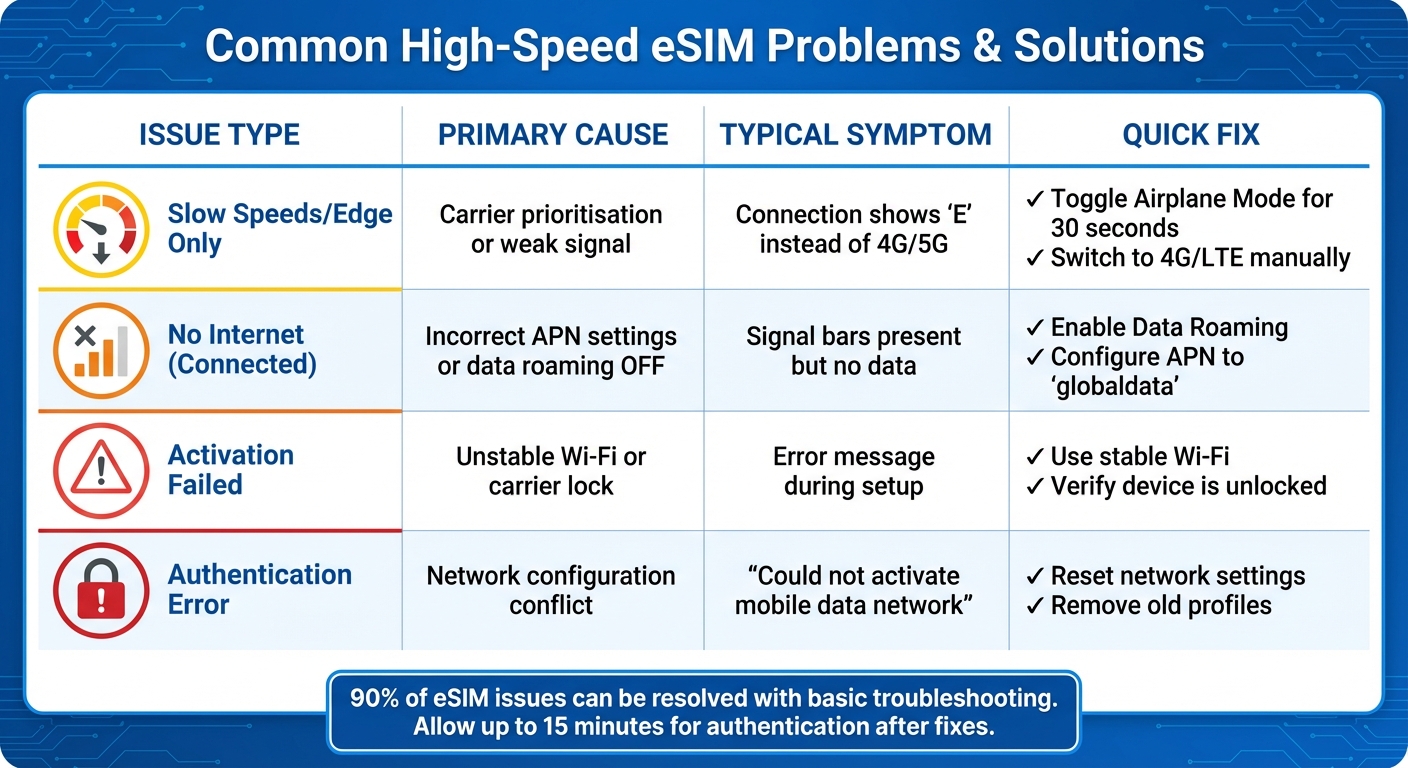
Common eSIM Problems: Causes, Symptoms, and Quick Fixes
While eSIMs make staying connected abroad much easier, they’re not without their hiccups. Understanding these common issues can help you tackle them quickly and keep your connection smooth.
Slow or Unstable High-Speed Data
One frustrating issue is when an eSIM connects but delivers sluggish speeds or even drops to Edge (2G) instead of 4G or 5G. Local carriers often prioritise their direct subscribers over roaming eSIM users, especially during peak hours. On top of that, misconfigured device settings – like disabled data roaming, incorrect APN settings, or enforced 2G mode – can hold you back from enjoying high-speed data. Signal strength also plays a big role, particularly when you’re far from a strong service area. If you’re using both a physical SIM and an eSIM at the same time, conflicts can arise, especially if smart switching features are enabled. These factors often explain why your connection isn’t as fast as it should be.
eSIM Fails to Connect After Activation
Another common snag is when an eSIM refuses to connect after activation. Travel eSIMs usually require data roaming to be switched on for them to work with local networks. Sometimes, your phone might default to using the physical SIM for data instead of the eSIM, which means you’ll need to manually adjust the Cellular Data settings. Many eSIMs won’t activate until you’re physically in the destination country they support. Carrier-locked devices can also block third-party eSIM profiles, displaying errors like "Cellular Plans From This Carrier Cannot be Added". On iOS devices, outdated VPN configurations or old management profiles can further complicate things by blocking new eSIM connections.
"If your eSIM is not working, it’s usually not one single reason. Sometimes the activation fails. Sometimes the signal drops. Other times, your phone shows the eSIM but doesn’t connect to any network."
– Peter, eSIM Specialist, BazTel
Activation Errors and QR Code Issues
Problems can also crop up during the activation process, particularly with QR codes. A common error on iPhones – "Unable to Activate eSIM" – often happens when you install the profile before arriving at your destination. While the profile may install in the background, it won’t activate until it connects to a local network. Another error, "Unable to Complete Cellular Plan Setup", usually points to weak internet connectivity or an overloaded activation server. Issues with scanning the QR code – like poor lighting or a dirty camera lens – can lead to errors such as "Invalid" (indicating the code has expired or been used) or "Unsupported" (due to a carrier mismatch). If your device has already reached its limit for stored eSIM profiles, you won’t be able to add a new one.
Regional Roaming Problems
Travelling between countries can add another layer of complexity. Frequent network switching or incorrect roaming settings might leave you without service entirely if automatic network selection fails to find a compatible carrier. In some cases, switching networks too often while travelling across borders can deactivate your eSIM. To stay connected during multi-destination trips, it’s crucial to address these issues promptly.
| Issue | Primary Cause | Typical Symptom |
|---|---|---|
| Slow Speeds/Edge Only | Carrier prioritisation or weak signal | Connection shows "E" instead of 4G/5G |
| No Internet (Connected) | Incorrect APN settings or data roaming OFF | Signal bars present but no data |
| Activation Failed | Unstable Wi‑Fi or carrier lock | Error message during setup |
| Auth Error | Network configuration conflict | "Could not activate mobile data network" |
Basic troubleshooting steps, like restarting your phone or toggling aeroplane mode, can resolve most eSIM connectivity complaints – up to 90%, according to estimates. Once you reset your data connection or switch networks, it might take up to 15 minutes for your eSIM to authenticate and start delivering high-speed data.
Solutions for High-Speed eSIM Problems
If your eSIM isn’t performing as it should, don’t worry – most issues can be resolved quickly and without needing any technical know-how. Here’s how to tackle common problems and get your connection back on track.
Restoring High-Speed Performance
If your data speeds have slowed to a crawl or dropped to Edge (2G), try these steps:
- Restart your device: This can refresh network connections and clear minor glitches.
- Toggle Aeroplane Mode: Turn it on for 30 seconds, then off again to reconnect to the nearest cellular tower.
- Enable Data Roaming: Many travel eSIMs need this setting turned on in your cellular settings.
- Check your eSIM settings: Ensure it’s active for mobile data in your SIM Manager.
- Manually configure the APN: If automatic setup isn’t working, enter your provider’s APN (e.g. "globaldata") manually, leaving the username and password fields blank unless instructed otherwise.
- Switch to 4G/LTE: If 5G coverage is inconsistent, switching to 4G/LTE can stabilise your connection.
- Disable interfering features: Temporarily turn off VPNs, firewalls, or battery-saving modes that might throttle your connection.
- Manually select a network: Disable automatic network selection and choose a supported carrier from the list.
- Reset network settings: Go to Settings > General > Reset to clear any configuration conflicts. Keep in mind this will erase saved Wi-Fi passwords and VPN settings, and it may take up to 15 minutes for your eSIM to fully reconnect.
If these steps don’t help, you might need to address deeper activation or connection issues, which are covered in the next section.
Fixing Connectivity Issues
When your eSIM refuses to connect after activation, here’s what to do:
- Check the eSIM profile: Make sure it’s toggled "ON" and set as the active line for mobile data.
- Confirm your location: Many eSIMs only activate in their supported destination countries. If you’re already there but still seeing "Searching" or "No Service", disable automatic network selection and choose a local carrier manually.
- Remove old profiles: On iOS, go to Settings > General > VPN & Device Management and delete any outdated configuration profiles, as these can block new eSIM connections.
- Verify your device isn’t carrier-locked: Check in the About section of your settings. Locked phones often reject third-party eSIM profiles.
- Update your software: Outdated operating systems can cause compatibility issues, so install any pending updates.
- Manually set the APN: If data isn’t flowing despite a connection, try setting the APN to "globaldata" and leave other fields blank.
These steps should resolve most connectivity problems tied to your eSIM.
Resolving Activation and QR Code Errors
If activation issues persist, focus on QR code and profile-specific fixes:
- Confirm compatibility: Ensure your phone supports eSIMs (e.g. iPhone XS or newer, Samsung S20 or newer, or Pixel 3 or newer) and is carrier-unlocked.
- Use a stable Wi-Fi connection: A reliable connection is crucial when downloading your eSIM profile.
- Handle QR code errors: If the code won’t scan, use the "Enter Details Manually" option in your settings to input the SM-DP+ Address and Activation Code. If the code is flagged as "already used" or "expired", contact your provider for a replacement.
- Restart or reset: Restart your device or reset network settings to resolve configuration conflicts.
- Remove unused profiles: Having too many stored profiles can cause errors like "Profile Cannot Be Added." Delete any you no longer need.
- Timing matters: On some iPhones, installing the eSIM before arriving at your destination can trigger an "Unable to Activate" error. In such cases, the profile usually activates automatically once you reach the supported location.
Ensuring Regional Roaming Works Properly
Travelling across multiple countries? Here’s how to keep your eSIM working smoothly:
- Check coverage: Review your provider’s list of supported carriers for each destination.
- Reconnect across borders: Toggle Aeroplane Mode for 30 seconds when crossing into a new country to force your device to reconnect to the local network.
- Enable Data Roaming: Double-check this setting stays on, as some devices reset it when switching between networks.
- Manually select networks: If automatic selection fails, switch to a supported 4G or 5G network in your "Voice & Data" settings to avoid being stuck on slower 2G speeds.
With these adjustments, you can maintain a reliable, high-speed connection as you travel. If problems persist, consider reaching out to your eSIM provider for further assistance.
sbb-itb-273ea09
How to Choose and Set Up High-Speed eSIMs
Choosing the Right Plan for Your Needs
Before diving into eSIM options, make sure your device is carrier-unlocked and supports eSIM functionality. You can check this by looking for settings like "Add eSIM" or "Add Cellular Plan" on your device.
Next, pick a plan that matches your travel plans. Whether you’re staying in a single country, travelling across a region, or hopping between multiple countries, there’s an option for you. Local plans are great for single-country trips, regional plans cover specific areas, and global plans can span over 125 countries. Always review coverage maps to confirm the plan offers high-speed 5G or 4G instead of slower, throttled 3G .
To estimate your data needs, consider your usage habits. Light users generally need 850MB–1.5GB per week, while heavy users may require 7GB–10GB. Planning to use your phone as a hotspot? Double-check if the plan allows tethering, as some budget or unlimited options may have restrictions .
Providers like ZIM Connections offer a wide range of plans, covering over 200 destinations. Their options include 5G/4G connectivity, unlimited data, and even local phone numbers. Plus, their platform allows seamless usage across multiple destinations with a single eSIM.
Once you’ve chosen the perfect plan, setting up your eSIM correctly is essential to ensure smooth and reliable connectivity.
Setting Up Your eSIM for Reliable Performance
To avoid any hiccups, install your eSIM while connected to a stable Wi-Fi network, preferably before you leave for your trip. Once installed, enable Data Roaming for the eSIM and set it as your primary data line . For added convenience, label the eSIM (e.g., "Travel" or "UK Data") so you can easily identify it later .
Keep in mind that it can take up to 15 minutes for your eSIM to authenticate and start providing 4G LTE or 5G data after activation . If you encounter issues with data connectivity, check the APN settings (e.g., "globaldata") and remove any outdated carrier profiles that might interfere .
When to Contact Provider Support
If restarting your device or tweaking settings doesn’t bring back connectivity – even when you have a visible signal – it’s time to reach out to your provider. The same applies if you have a positive data balance but can’t get online, or if you’re facing "device locked" errors. These situations often require professional help.
Sometimes, APN settings don’t auto-fill, or you might need specific parameters like "globaldata" to activate your data. In such cases, your provider’s technical team can guide you through the correct setup. They can also assist with manually selecting a local network if the automatic connection isn’t working. Knowing when to seek their help can save you a lot of frustration.
Before contacting support, gather some key details to make the troubleshooting process smoother. Note your current location, device model, purchase email, and eSIM number. Also, check your signal strength and cellular data settings, such as whether Data Roaming is enabled and which APN you’re using. This information can significantly speed up the resolution process.
Avoid deleting your eSIM profile, as reinstalling it might not always be possible. Instead, contact support first. If you’re a ZIM Connections user, you can access live support directly through the mobile app or via email. Taking screenshots of error messages or your cellular settings can also help technicians pinpoint the issue more quickly.
While resetting network settings resolves about 80% of "no service" errors, some problems – like data speeds stuck on 2G after troubleshooting or activation delays lasting several hours – require provider intervention. Their technical team can identify network-side issues or regional outages that you can’t fix on your own.
Conclusion
High-speed eSIMs have changed the way we stay connected while travelling, but like any technology, they can occasionally run into issues. From sluggish data speeds to activation glitches or regional roaming troubles, many of these problems can be fixed with a few simple troubleshooting steps. These quick fixes, paired with reliable support, can help you stay online no matter where you are.
ZIM Connections, a trusted provider that has assisted over 100,000 travellers across 200 destinations, offers live support via their mobile app and email to help with activation and connectivity challenges. Often, basic troubleshooting – like verifying your installation, enabling data roaming, or updating your device – can quickly get things back on track.
To avoid complications, it’s best to set up your eSIM before you travel. Use a stable Wi-Fi connection, make sure your device is unlocked and eSIM-compatible, and adjust key settings like Data Roaming and your default data line. If something goes wrong, always reach out to your provider’s support team rather than deleting the eSIM profile, as QR codes can only be used once.
Whether you’re relying on a local plan for one country or a global plan that spans over 125 countries, following these straightforward tips ensures you stay connected. Most issues are easily resolved, and for those that aren’t, having access to responsive technical support can make all the difference.
FAQs
Why is my eSIM data slow even in an area with high-speed coverage, and how can I fix it?
If your eSIM data feels sluggish, the first step is to see if any unnecessary apps are quietly consuming data in the background. If they are, disable them. Also, make sure your device’s software and carrier settings are completely up to date. A quick restart of your device or resetting the network settings can help refresh the connection.
Still facing slow speeds? Try manually switching to a less crowded 4G or 5G network. Another option is to move to a location with a stronger signal, which can often boost performance. These simple steps usually tackle most speed-related issues with ease.
How do I activate my eSIM when travelling abroad?
To make sure your ZIM Connections eSIM works smoothly during your travels, it’s important to set it up correctly before you leave and tweak a few settings once you arrive.
- Set up your eSIM at home: After purchasing your plan, you’ll get a QR code via email. While connected to Wi-Fi, scan the QR code and follow the instructions to add the eSIM to your device.
- Keep it turned off until you arrive: Once installed, don’t activate the eSIM just yet. Leave it off to avoid any unexpected charges. Switch it on only when you reach your destination.
- Enable data roaming and set it as default: Upon arrival, head to your phone settings, turn on data roaming, and choose the eSIM as your default option for mobile data.
- Test the connection: Open a website or app to check if everything’s working. If there’s an issue, try restarting your device or toggling the eSIM line off and back on.
By following these steps, you’ll enjoy a hassle-free connection while exploring new places.
Why isn’t my eSIM connecting to a network after activation?
If your eSIM isn’t connecting to a network after activation, a few common issues might be causing the problem. First, ensure your device is compatible and that the eSIM profile has been installed correctly. Head to your phone’s settings to verify that the eSIM line is active and that data roaming is enabled – this is often disabled by default, especially for international eSIMs.
Also, confirm that you’re within the coverage area specified by your eSIM plan. Many plans are region-specific, meaning a plan designed for the United States won’t function outside that area. Other factors, such as weak signal strength, outdated software, or cellular data being turned off, can also interfere with your connection.
For ZIM Connections eSIM users, double-check these settings and ensure your device is running the latest software updates. These simple steps usually resolve most connectivity issues efficiently.