



5 Steps to Fix eSIM Profile Download Errors
https://www.zimconnections.com/5-steps-to-fix-esim-profile-download-errors/
 SHARE
SHARE
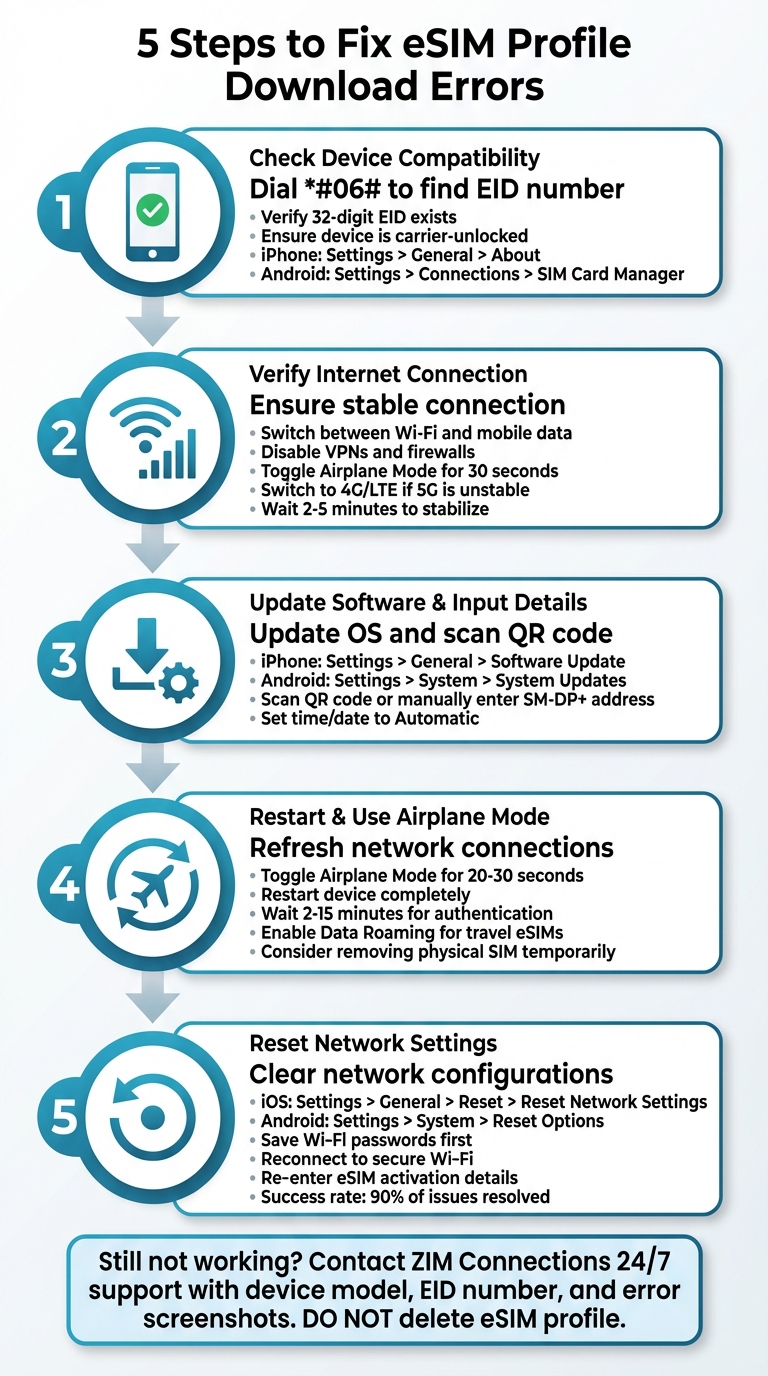
Downloading an eSIM profile should be simple, but errors can occur due to issues like poor internet, outdated software, or incorrect activation details. If you’re unable to install your eSIM, follow these five steps to resolve the problem:
- Check Device Compatibility: Ensure your phone supports eSIM and is carrier-unlocked. Look for an EID number in your settings or dial
*#06#to confirm. - Verify Internet Connection: A stable internet connection is essential. Switch between Wi-Fi and mobile data, disable VPNs, or toggle Aeroplane Mode to improve connectivity.
- Update Software and Input Details: Keep your device updated and carefully scan the QR code or manually enter the SM-DP+ address and activation code.
- Restart and Use Aeroplane Mode: Restart your phone or toggle Aeroplane Mode to refresh network connections. Ensure Data Roaming is enabled for travel eSIMs.
- Reset Network Settings: If all else fails, reset your network settings. Reconnect to Wi-Fi and retry the activation process.
If these steps don’t work, contact your eSIM provider with your device details and screenshots of error messages for further assistance. Avoid deleting your eSIM profile to prevent complications during troubleshooting.
5-Step Troubleshooting Guide for eSIM Profile Download Errors
How to Fix Unable to Activate eSIM
Step 1: Check if Your Device Supports eSIM
Before diving into troubleshooting download errors, it’s essential to confirm that your device is equipped with eSIM hardware. Certain regional models, particularly those from mainland China, might lack eSIM functionality even if the global versions of the same device support it.
A quick way to check is by dialling *#06#. This will display your device’s identifiers. If you see an EID (Embedded Identity Document) number listed alongside the IMEI, your phone supports eSIM. The EID is a 32-digit number that confirms eSIM capability.
For iPhones, head to Settings > General > About and look for "Digital SIM" or "eSIM". Apple introduced eSIM support starting with the iPhone XS series, so any iPhone from that series onwards is compatible.
Android users can verify compatibility through their settings. On Samsung devices, navigate to Settings > Connections > SIM Card Manager and look for the "Add eSIM" option. For Google Pixel devices, go to Settings > Network & Internet > Mobile Network. Samsung’s Galaxy S20 series and newer models support eSIM, while Google Pixel devices from the Pixel 3 onwards are compatible.
Additionally, ZIM Connections offers a compatibility list for each plan available on its platform. This allows you to confirm whether your specific device works with the plan you’re considering. Simply visit their website or app and check the "Compatible Devices" section under your chosen data plan. Keep in mind that your device must also be carrier-unlocked. If your phone is locked to a specific carrier, it won’t accept eSIM profiles from third-party providers, even if it has the necessary hardware.
Once you’ve confirmed your device supports eSIM, you can move on to checking your internet connection in the next step.
Step 2: Check Your Internet Connection
Having a reliable internet connection is crucial when downloading an eSIM profile. Any interruption in the process of authenticating your device’s Embedded Identity Document (EID) with the carrier’s server can result in a failed download. As Leo Grant, eSIM Specialist at eSIMCard, explains, "To download an eSIM profile, you need a stable and strong internet connection".
To ensure your connection is up to the task, try opening a web page or streaming a video. If the page takes too long to load or the video keeps buffering, your connection might not be stable enough for the download.
If issues persist, toggle Aeroplane Mode for about 30 seconds and then turn it off. Another option is to switch between Wi-Fi and mobile data. For example, if the download fails on Wi-Fi, try using mobile data from your physical SIM, or vice versa. Avoid using public Wi-Fi networks during activation, as they can either block the required data usage or lack the stability needed.
If you’re in an area with inconsistent 5G coverage, consider switching to 4G/LTE in your device settings. LTE often offers a more stable connection for downloads. If you’re indoors, moving closer to a window can also help improve signal strength.
Additionally, turn off VPNs, Apple Private Relay, and any firewall apps temporarily, as these can interfere with your device’s ability to register on the network. After making these adjustments, allow your device 2 to 5 minutes to reconnect and stabilise before attempting the download again.
Once your connection is steady, you’re ready to update your device and move on to entering the activation details in the next step.
Step 3: Update Your Device and Enter Activation Details
Keeping your device’s software up to date is crucial for a smooth eSIM installation. As Leo Grant, eSIM Specialist at eSIMCard, explains, "Your device must be updated to seamlessly work with eSIM, which requires the latest operating system". Manufacturers regularly release updates to fix bugs and include the necessary network configurations for eSIM functionality.
To update your device, follow these steps:
- On iPhone: Go to Settings > General > Software Update and install any available updates.
- On Android: Navigate to Settings > System > System Updates (or a similar path, depending on your device).
Once your device is updated, you’re ready to activate your ZIM Connections eSIM.
Activating Your eSIM
- For iPhone:
Open Settings > Mobile Data > Add eSIM, then select Use QR Code. Scan the QR code from your confirmation email. - For Android:
Go to Settings > Network & Internet > SIMs. If you’re using a Samsung device, head to Settings > Connections > SIM Card Manager. Tap the "+" icon or Add Mobile Plan and scan the QR code.
If the QR code doesn’t work, choose Enter Details Manually. Carefully input the SM-DP+ Address and Activation Code as provided. On most Android devices, you might only need to paste the Activation Code. Also, ensure your device’s time and date settings are set to Automatic to establish a proper connection with the server.
Troubleshooting QR Code Issues
Keep in mind that eSIM QR codes are typically single-use. If the installation process was interrupted, the code might show as invalid because the profile is partially registered on your device. Check your Mobile Data or SIMs settings to see if the profile has already been added under a generic name like "Personal" or "Travel." If it’s there, complete the setup by entering the required details.
Once everything is configured, you’re ready to move on to Step 4, which involves restarting your device.
sbb-itb-273ea09
Step 4: Restart Your Device and Use Aeroplane Mode
After entering the activation details, restarting your device and using Aeroplane Mode can often fix stuck downloads. These steps help refresh your device’s network connections and clear any temporary issues preventing the ZIM Connections eSIM profile from fully installing.
Start by toggling Aeroplane Mode. This forces your device to reconnect to the network without needing a complete reboot. On Android, pull down the Quick Settings menu; on iOS, open the Control Centre. Turn on Aeroplane Mode and leave it on for 20–30 seconds. Then, turn it off and wait a few minutes for the network to register again. In some cases, this process can take up to 15 minutes for full authentication.
If Aeroplane Mode doesn’t resolve the issue, try restarting your device. Power it off, wait a few seconds, and turn it back on. After rebooting, give your device at least 2 minutes to finish background processes before opening any apps.
If the download is still stuck, consider removing your physical SIM card before restarting. This can help avoid potential hardware conflicts and ensure the eSIM setup is prioritised.
Lastly, ensure that Data Roaming is enabled in your eSIM settings. For ZIM Connections travel eSIMs, Aeroplane Mode will only refresh the connection properly if Data Roaming is turned on. If none of these actions work, you may need to reset your network settings, as outlined in Step 5.
Step 5: Reset Network Settings and Try Again
If you’ve gone through the earlier steps and are still facing trouble downloading your eSIM, resetting your network settings might be the solution you need. According to an eSIM Specialist, "Resetting network settings solves 90% of eSIM not working complaints".
Important: Before you proceed, make sure to note down your Wi-Fi passwords. Resetting your network settings will clear all saved Wi-Fi networks and passwords, Bluetooth pairings, VPN configurations, and any customised APN settings. However, your personal files – like photos, apps, and documents – will remain safe.
Here’s how you can reset your network settings:
- For iOS devices: Navigate to Settings > General > Transfer or Reset iPhone > Reset > Reset Network Settings.
- For Android devices: Go to Settings > System > Reset Options > Reset Wi-Fi, Mobile & Bluetooth. On some Samsung models, you may find this option under Connections > Mobile Networks.
Your device might restart during this process, so don’t be alarmed.
After the reset is complete, reconnect to a secure and reliable Wi-Fi network. A stable connection is crucial for the activation process. Once connected, log back into your ZIM Connections account to access your eSIM activation details.
- On iOS: Go to Settings > Cellular and tap Add eSIM.
- On Android: Head to Settings > Network & Internet > SIMs and either scan the QR code or enter the activation details manually.
Once your eSIM is installed, ensure that Data Roaming is turned on for your ZIM Connections line. If activation still doesn’t work, try disabling automatic network selection and manually selecting a supported local carrier. If these steps don’t resolve the issue, it’s time to contact ZIM Connections support for further assistance.
When to Contact ZIM Connections Support
If you’ve tried all troubleshooting steps and the issue persists, it’s time to reach out to ZIM Connections support. Their team is available 24/7 via the website and mobile app, ready to assist with technical eSIM and profile-related issues.
Before contacting support, make sure to check your ZIM account dashboard to confirm your plan is marked as "Active". If it is, but your device still shows "No Service" or "Searching", the support team can investigate potential activation delays with local carriers. To speed up the process, take screenshots of any error messages you encounter, such as "eSIM activation failed" or "Profile Cannot Be Added", as these can help pinpoint the problem more quickly.
Avoid deleting your eSIM profile from your device settings, as this could result in permanent loss and complicate the resolution process. Instead, keep the profile intact and follow the guidance provided by the support team.
When reaching out, have the following details ready: your device model, EID number, and a list of the troubleshooting steps you’ve already tried. If you’re travelling and need urgent help, live support is available to assist you promptly.
If scanning the QR code fails, support can provide manual activation details, including the SM-DP+ Address and Activation Code. They can also help if you’ve accidentally deleted your eSIM profile or suspect the QR code has expired and needs to be reissued. Follow their instructions carefully to resolve the issue effectively.
Conclusion
By following the steps outlined earlier, you should now have the tools to address eSIM profile download issues effectively. Checking your device’s compatibility, ensuring a stable internet connection, keeping your device updated, toggling Aeroplane Mode, and resetting network settings are all practical ways to resolve most errors.
It’s essential to tackle each step carefully. Always connect to a reliable Wi‑Fi network before starting the download, as the eSIM won’t function on its own data until the profile is fully installed. If scanning the QR code doesn’t work, you can manually input the details. Also, make sure Data Roaming is switched on.
ZIM Connections simplifies the activation process with pre‑verified QR codes and their ZIM Easy Installation option. With coverage in over 200 destinations and compatibility with a wide range of devices, they minimise the chances of region-lock or hardware-related issues.
"For users of ZIM, resolving eSIM issues is even easier thanks to their intuitive platform, dedicated support, and user‑friendly troubleshooting guides." – ZIM Connections
If problems persist despite following these steps, avoid deleting your eSIM profile, as this could complicate recovery. Instead, contact ZIM’s support team with details of your device and screenshots of the error. They’ll assist you in reconnecting swiftly. For ongoing challenges, their dedicated support team is on hand to ensure your connectivity remains uninterrupted.
FAQs
What can I do if my eSIM profile fails to download even after trying all the steps?
If your eSIM profile still doesn’t download after confirming a stable network connection, ensuring the eSIM is active and properly linked to your device’s EID, restarting your device, checking compatibility, updating your operating system, and using the correct QR code, it’s time to contact ZIM Connections support. Their team is equipped to help sort out the issue efficiently.
Make sure to have your device information and any error messages on hand when reaching out. This will help the support team pinpoint the problem and assist you more effectively.
How can I check if my device supports eSIM before downloading a profile?
To confirm whether your device supports eSIM, follow these steps:
- Look for an EID in your settings: Navigate to Settings > General > About and search for a field labelled EID. If you find a 32-digit number, your device is equipped with an eSIM chip and is compatible.
- Use the dial-pad code on iPhone or iPad: Open the Phone app and dial *#06#. If an EID number appears, it confirms eSIM support.
- Check the device specifications: Visit the manufacturer’s website (such as Apple, Samsung, or Google) and search for terms like “eSIM support” or “dual-SIM (eSIM)” in the specifications section.
- Update your device’s software: Make sure your device is running the latest operating system, as older versions may not show eSIM features.
If you find an EID or the specifications confirm eSIM compatibility, you’re ready to download your eSIM profile. If not, you’ll need to rely on a physical SIM or switch to a compatible device. ZIM Connections advises verifying compatibility before activating one of their international eSIM plans to avoid potential issues.
What are the common internet issues that can cause problems with downloading an eSIM profile?
Several internet-related problems can interfere with downloading an eSIM profile:
- Weak or unstable internet connection: If your device is in a spot with poor network coverage or an unreliable signal, the eSIM profile might not download. Make sure you’re in an area with strong and stable connectivity.
- Data roaming is turned off: For international eSIM plans, data roaming needs to be enabled. Without it, your device won’t connect to the internet to complete the download.
- Service area limitations: Many eSIMs are restricted to specific geographic regions. If you’re outside the plan’s coverage area, your device might not be able to reach the carrier’s servers.
To address these issues, double-check your device settings, confirm you’re within the service area, and enable data roaming if required. If the issue continues, give the carrier some time for activation or reach out to your eSIM provider for help.