


Ultimate Guide to eSIM Data Usage Monitoring
https://www.zimconnections.com/ultimate-guide-to-esim-data-usage-monitoring/
 SHARE
SHARE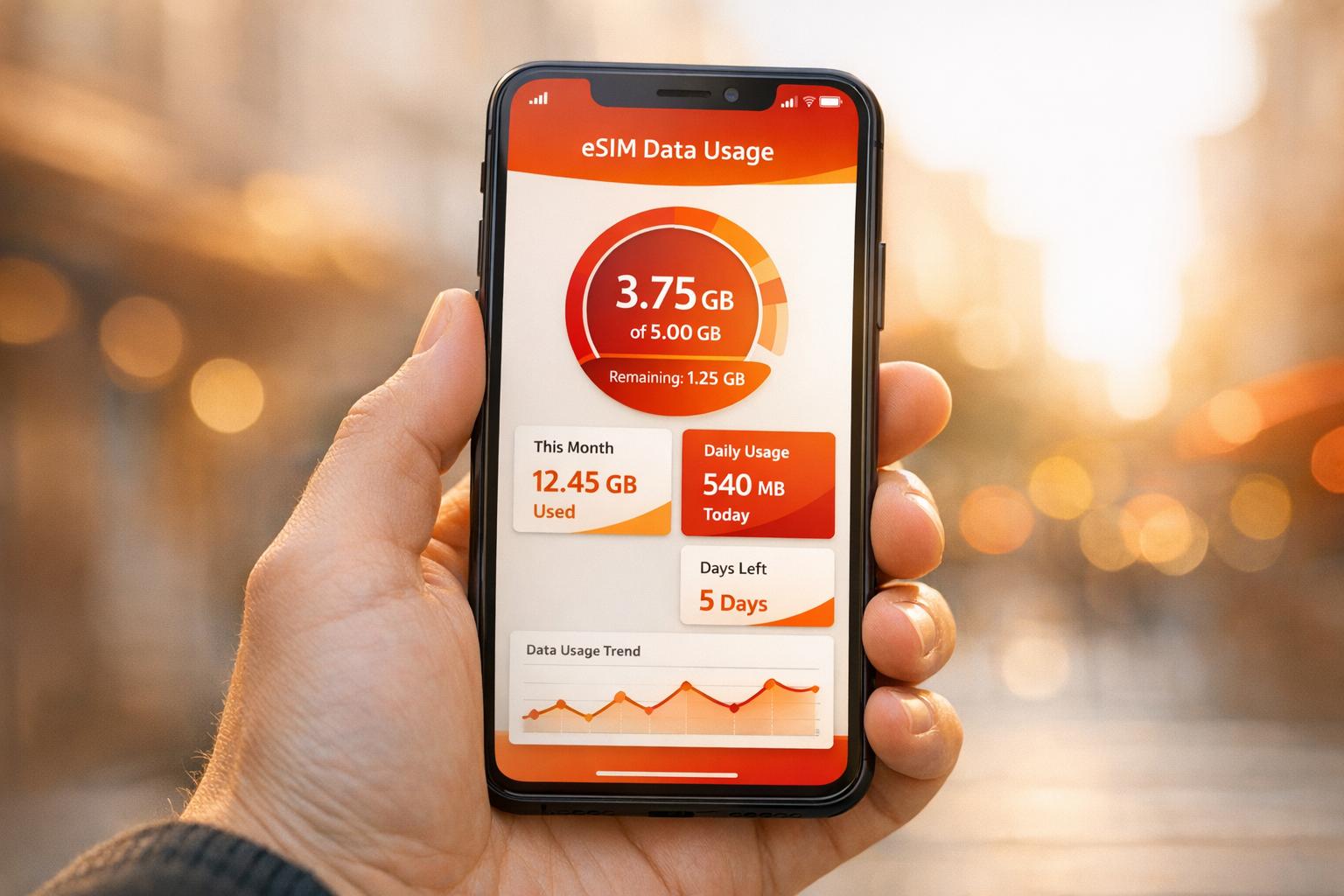
eSIMs make staying connected while travelling easier by letting you activate mobile data plans digitally, without needing a physical SIM card. They’re supported by most modern smartphones and allow you to use data plans for travel while keeping your primary SIM active for calls and texts. However, tracking your data usage is crucial to avoid unexpected charges or running out of data.
Here’s what you need to know:
- What is an eSIM? It’s a digital SIM that eliminates the need for physical cards, offering flexibility, security, and reduced waste.
- Why monitor data usage? Apps like streaming or navigation can consume data quickly. Monitoring helps you manage costs and avoid interruptions.
- How to track data usage: Use your phone’s settings or the ZIM Connections app, which provides real-time tracking through its eSIM Wallet feature.
- Tips for conserving data: Enable Low Data Mode (iPhone) or Data Saver (Android), use Wi-Fi whenever possible, and download content like maps or videos for offline use.
- ZIM Connections benefits: Prepaid plans start at £1, with coverage in 200+ destinations. The app offers alerts, top-up options, and detailed usage tracking.
Can I Monitor My eSIM Data Usage To Avoid Overages?
How to Check eSIM Data Usage on Your Device
Keeping track of your data usage is simple with your device’s built-in settings. Both iPhone and Android users can monitor their data consumption, including a detailed breakdown by app. For the most accurate and up-to-date information, the ZIM Connections app offers real-time tracking through its dedicated eSIM Wallet feature.
Checking Data Usage on iPhone
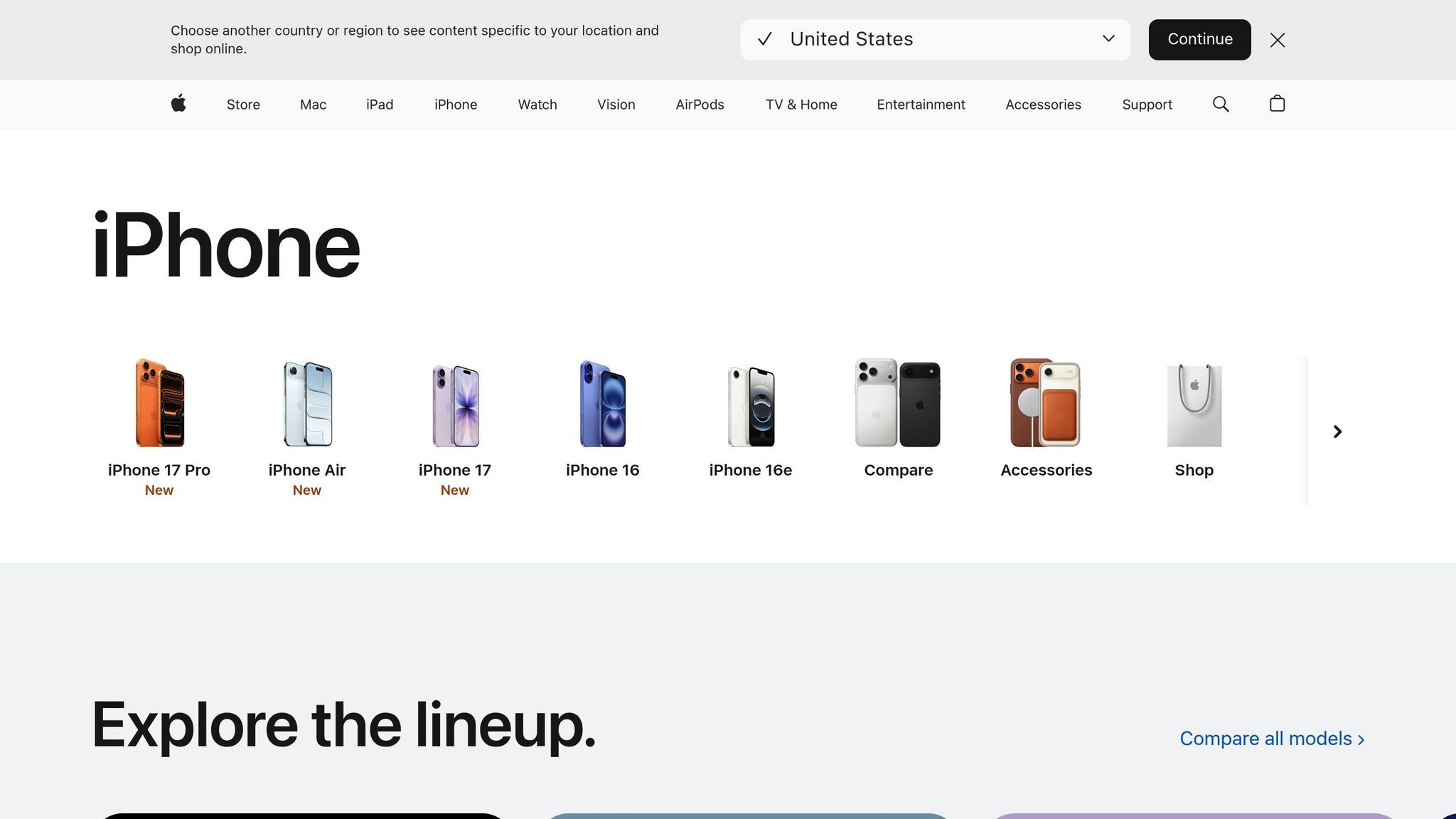
To see how much data you’ve used, go to Settings and tap Mobile Data. Here, you’ll find your total data consumption under "Mobile Data Usage." For a deeper dive, scroll down to view a list of apps and how much data each has used. This is especially handy for spotting data-heavy apps, like streaming services or navigation tools.
If you’re tracking usage for a specific billing period or trip, scroll to the bottom of the Mobile Data settings and tap Reset Statistics. This clears previous data and gives you a fresh start for monitoring during the current period.
For real-time updates and plan details, open the ZIM Connections app and check the eSIM Wallet feature. It provides a more precise overview of your remaining balance.
To manage and reduce data usage, consider enabling Low Data Mode under Mobile Data Options. This feature limits background tasks to help conserve data. Additionally, turn off Wi-Fi Assist (found at the bottom of the Mobile Data settings) to prevent your device from switching to eSIM data when your Wi-Fi connection is weak.
Checking Data Usage on Android
Android users can also easily monitor their data through native settings or the ZIM Connections app. Open Settings and navigate to Network and Internet (or Connections on some devices). From there, select Data Usage or Mobile Network to view your current consumption. Tap your active ZIM Connections eSIM profile to see usage details, including which apps are using the most data.
To avoid overages, set a Data Warning or Limit in your Mobile Network settings. If this option isn’t visible, check your device’s SIM settings.
For a more detailed and real-time view of your balance, use the ZIM Connections app. The eSIM Wallet feature provides a clear picture of your plan and remaining data.
To stretch your data even further, enable Data Saver Mode in your Network settings. This feature stops apps from using background data when you’re not actively using them, helping you make the most of your ZIM Connections plan during your travels.
Using the ZIM Connections Dashboard for Data Monitoring
Your device’s built-in settings might give you a basic idea of your data usage, but the ZIM Connections platform takes this a step further. With its dashboard, you get a detailed, real-time view of your eSIM usage – no need to manually reset counters. It’s an easy way to track your remaining balance and understand your consumption patterns at a glance.
Tracking Your Data Usage in Real-Time
The eSIM Wallet in the ZIM app acts as your go-to hub for keeping tabs on all your active plans. Simply open the app and head to the Wallet section to see real-time data usage across your local, regional, or global plans. This is especially handy if you’re juggling multiple eSIMs or frequently travelling between destinations.
For businesses, the ZIM Business Dashboard offers a broader view, allowing you to monitor data usage across multiple employees and devices. It’s a practical tool for managing connectivity expenses and staying on top of usage trends.
Setting Up Usage Alerts and Adding Top-Ups
ZIM Connections makes it easy to avoid surprises. You’ll automatically receive a notification when you’ve used 80% of your data plan, and you can also set up custom alerts to notify you at 50%, 80%, and 100% of your allowance. These alerts help you stay in control and plan top-ups before running out of data.
If you’re running low, adding more data is simple. You can purchase extra packages right from the app, and they activate within minutes. Prices start at just £1 for UK-specific plans, with regional options typically ranging between £2 and £3, depending on the data volume.
Reviewing Your Past Data Usage
The dashboard also keeps a record of your past usage, making it easy to assess whether your data plan meets your needs. For example, you can check if a 1GB package was enough or if upgrading to 5GB would be more practical.
Additionally, you can review your billing and purchase history directly in the app. This feature is great for tracking expenses or figuring out which plans offered the best value during different trips. If you notice your data is disappearing quickly, it might be worth checking your device’s settings to turn off "Background App Refresh" for apps you don’t use often.
These tools provide a solid starting point for managing your data effectively, with more tips to follow in the next section.
sbb-itb-273ea09
Tips for Reducing Data Usage with ZIM Connections eSIMs
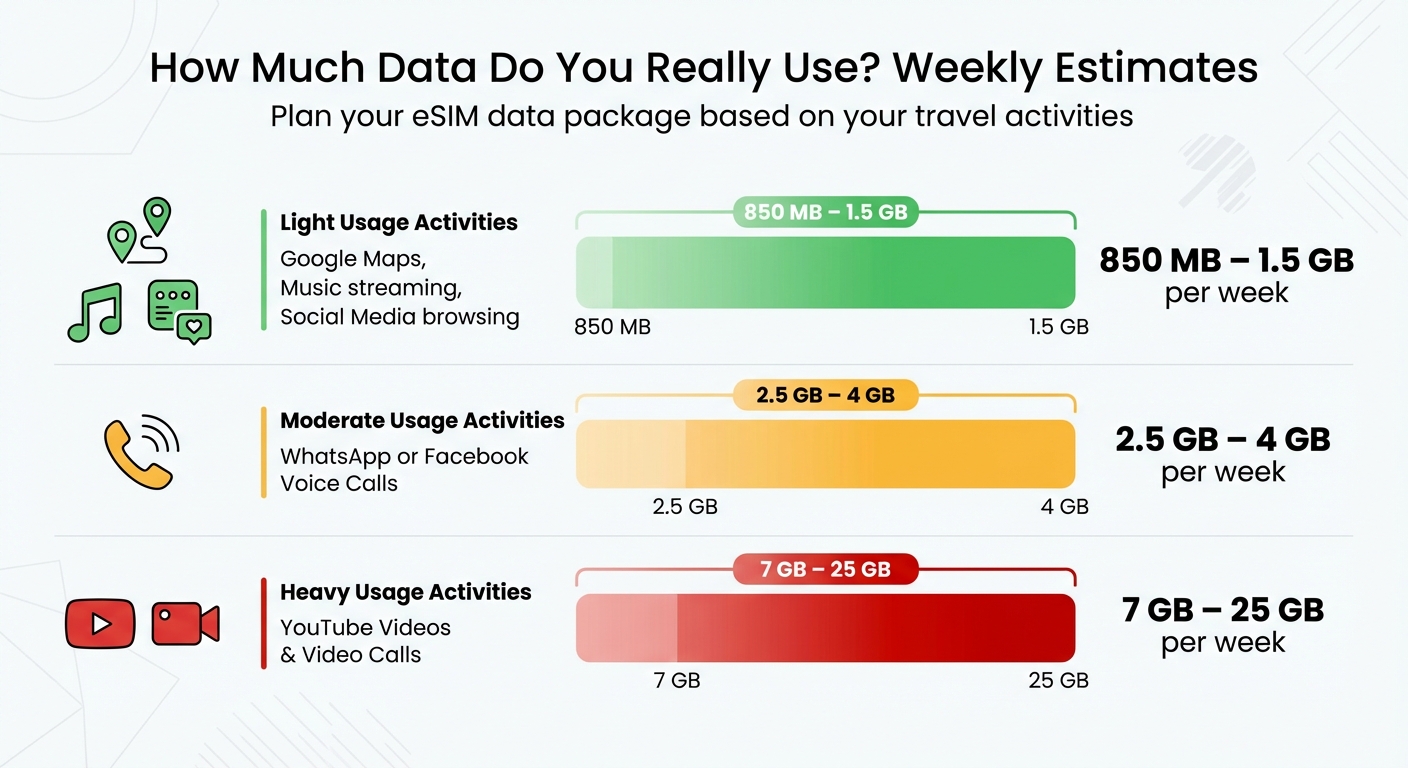
Weekly Data Usage by Activity Type for eSIM Travel Plans
Once you’ve mastered tracking your data through the ZIM Connections dashboard, the next step is learning how to make that data last longer. With a few tweaks to your device settings and some mindful habits, you can get more out of your ZIM Connections plan, whether you’re travelling for work or pleasure.
Turning On Low Data Mode or Data Saver
Both iOS and Android devices come equipped with features designed to limit background data usage.
- For iPhone users: Navigate to Settings > Mobile Data > Mobile Data Options, then switch on Low Data Mode.
- For Android users: Head to Settings > Connections > Data Usage (or Network & Internet > SIMs) to find similar options.
These settings pause background activities, like auto-refreshing apps, and delay non-essential downloads, such as system updates or cloud backups (e.g., iCloud Photos). They can also lower streaming quality, helping you save data when you’re not on Wi-Fi.
Using Wi‑Fi and Limiting Background Data
Wi‑Fi is your best friend when it comes to conserving mobile data. Connect to Wi‑Fi whenever it’s available, saving your ZIM Connections eSIM data for moments when Wi‑Fi isn’t an option.
You can also take control of which apps can use mobile data in the background. On both iOS and Android, restrict certain apps – like video streaming or social media – to operate only when connected to Wi‑Fi. Additionally, set your Google Play Store or iOS App Store to update apps over Wi‑Fi only, avoiding surprise downloads that eat into your data.
Android users have an extra tool: you can set a data usage warning and even a hard limit in your settings. Once you reach the threshold, mobile data will automatically turn off, ensuring you don’t go over your plan.
Downloading Content for Offline Use
Planning ahead can significantly reduce your reliance on mobile data. Before you travel, download as much content as possible over your home Wi‑Fi. For example:
- Google Maps: Save offline maps of your destination.
- Music apps: Spotify and Apple Music allow you to download playlists.
- Streaming platforms: Netflix and YouTube offer offline viewing options.
When Wi‑Fi isn’t available, manually adjust streaming quality in apps like Netflix, YouTube, and Spotify to use less data. Lower-quality settings still provide a decent experience while keeping data usage in check. Another smart move is disabling auto-play for videos in social media apps like Instagram and Facebook – or setting them to work only on Wi‑Fi.
These small changes can go a long way in making your ZIM Connections data plan stretch further.
| Activity Type | Estimated Data Usage (Per Week) |
|---|---|
| Google Maps, Music, Social Media | 850 MB–1.5 GB |
| WhatsApp or Facebook Voice Calls | 2.5 GB–4 GB |
| YouTube Videos & Video Calls | 7 GB–25 GB |
Fixing Common Data Usage Problems
Once you’ve set up your data monitoring, the next step is to address any issues that might cause your ZIM Connections eSIM data to run out faster than expected. Here are some practical fixes to help you stay in control of your data usage.
Finding What’s Using Too Much Data
To figure out which apps or features are eating up your data, you’ll need to dig into your device settings. On an iPhone, head to Settings > Cellular, where you’ll find a detailed breakdown of each app’s data consumption. If you’re using an Android device, check Settings > Connections > Data Usage or Network & Internet > SIMs for similar details.
One common culprit is Background App Refresh, which allows apps to update in the background. To manage this on an iPhone, go to Settings > General > Background App Refresh and either turn it off for apps you don’t need or set it to work only when connected to Wi-Fi.
Another sneaky feature is Wi-Fi Assist on iOS (or "Network Switch" on Android), which automatically uses mobile data when your Wi-Fi signal is weak. Disabling this in your cellular settings can save you from unexpected data usage.
Don’t forget about automatic updates and cloud backups – they can silently use a lot of data. Make sure app updates and backups are set to happen only when connected to Wi-Fi.
Here’s a quick overview of features that might be draining your data and how to handle them:
| Feature | Impact on Data Usage | Recommended Action |
|---|---|---|
| Background App Refresh | High (Silent) | Turn off for unnecessary apps |
| Wi-Fi Assist | Moderate to High | Disable in Cellular settings |
| Video Auto-play | High | Set to "Wi-Fi Only" in app settings |
| Cloud Backups | Very High | Disable over Cellular or Roaming |
| Streaming Quality | High | Adjust to "Data Saver" or "Low" quality |
Matching Device Stats with ZIM Connections Billing
Sometimes, your device’s data usage stats might not match what you see in your ZIM Connections dashboard. This happens because your device tracks all data usage since the last manual reset, which might not align with your eSIM plan’s start date.
The ZIM Connections app simplifies this by providing real-time tracking of your data usage. It’s the most accurate way to monitor your consumption because it reflects what the network provider sees. Treat the ZIM app as your go-to source for checking your balance and usage.
To keep your device’s data stats in sync with your ZIM eSIM plan, reset the statistics in your device settings when you activate your eSIM. On iPhones, this option is at the bottom of the Cellular or Mobile Data settings menu. This way, your device starts fresh alongside your plan. Also, remember that features like Wi-Fi Assist and Background App Refresh might use data in ways that aren’t immediately obvious.
Getting Help from ZIM Connections Support
If you’re still facing issues after trying these fixes, ZIM Connections offers professional support. You can reach their team directly through the mobile app or via email. They can help resolve discrepancies, explain charges, and even suggest ways to optimise your data usage.
Because ZIM Connections plans are prepaid, you won’t face unexpected overage charges. If you run out of data, you can easily top up or purchase additional data through the app – no need to contact support unless you want assistance.
The app also lets you manage multiple eSIMs and plans in one place, which is a lifesaver for frequent travellers juggling different regional packages. This centralised system makes it simple to track your usage across various destinations, ensuring you’re always connected when you need it most.
Summary and Key Points
Effectively managing your ZIM Connections eSIM data boils down to three essential habits: regular monitoring, optimising your settings, and planning ahead. Use both your device’s settings and the ZIM Connections dashboard to keep an accurate, real-time view of your data usage. To make tracking easier, reset your mobile data statistics whenever you activate or top up your eSIM. This ensures you’re working with accurate numbers for better control over your usage.
Best Practices for Managing Your Data
To stay in control of your data, enable Low Data Mode on iPhones or Data Saver on Android devices as soon as you activate your ZIM Connections eSIM. These settings limit background activity and auto-sync, which can quietly consume your data allowance. You can also save data by turning off auto-play for videos on social media, reducing streaming quality, and scheduling app updates and cloud backups for when you’re connected to Wi-Fi. For added peace of mind, set alerts at key usage milestones – like 50%, 80%, and 90% – through the ZIM Connections dashboard or your device settings.
Before travelling, download offline maps and playlists using your home broadband and take advantage of available Wi-Fi during your trip. This way, you can reserve your eSIM data for essentials like navigation, messaging, and important communications. If you notice a mismatch between your device’s statistics and the ZIM Connections dashboard, double-check that you’ve selected the correct billing period and eSIM profile in your device settings. When in doubt, rely on the dashboard for billing-related decisions, as it provides the most accurate data.
Why Choose ZIM Connections for Global Connectivity
These data management tips work hand-in-hand with the features offered by ZIM Connections, making it a reliable choice for global travellers.
ZIM Connections provides prepaid eSIM plans starting from just £1 and offers coverage in over 200 destinations worldwide. Whether you need a local, regional, or global eSIM, their plans are designed to work seamlessly across multiple countries. For instance, a UK traveller visiting Spain and Germany can use a single regional eSIM to manage their data across both destinations via one central dashboard – no need to buy separate SIMs for each country. Plus, all transactions are straightforward, with pricing displayed in pounds sterling.
Because these plans are prepaid, you won’t have to worry about unexpected overage charges. The ZIM Connections dashboard gives you real-time updates on your remaining balance, expiry dates, and destination coverage, with easy one-click top-ups available whenever needed. For businesses, the ZIM Business Dashboard simplifies team-wide connectivity by offering centralised management, instant eSIM activations, and real-time monitoring of data usage. This can help companies cut telecom expenses by up to 30%.
With 5G/4G speeds, hotspot support, and 24/7 customer service via the app or email, ZIM Connections ensures dependable and affordable connectivity wherever you go. By managing your data wisely, you can make the most of ZIM Connections’ prepaid eSIM plans and enjoy hassle-free global connectivity.
FAQs
How does the ZIM Connections app help you monitor eSIM data usage?
The ZIM Connections app takes the hassle out of managing your eSIM data. With its in-app eSIM wallet, you can monitor your data usage in real time, dive into detailed consumption statistics, and even set personalised alerts to help you stay within your limits.
What’s more, the app brings all your eSIM plans together in one convenient place. This means you can easily manage multiple plans and stay connected, no matter where your travels take you.
What are the advantages of using Low Data Mode on your device?
Low Data Mode is a handy feature designed to help you conserve data by restricting background network activity. With this setting enabled, apps won’t refresh in the background as frequently, streaming services may lower their quality, automatic downloads and backups are paused, and updates to iCloud Photos are delayed.
This is especially practical if you’re working with a limited data plan or travelling abroad. It allows you to stay connected while keeping your data usage in check.
How do I set up data usage alerts with ZIM Connections?
To manage your data usage effectively with ZIM Connections, start by opening the ZIM Connections app on your iPhone and logging in. Head to your eSIM wallet, where you can check all your active data plans along with their current usage.
Pick the plan you’d like to monitor and look for the option to set a usage alert. You can customise this by entering a threshold – say, 80% of your data allowance or a specific amount like 2 GB. Once set, confirm your choice. Don’t forget to enable push notifications in your phone’s Settings > Notifications for the ZIM app. This way, you’ll get an alert as you approach your chosen limit.
This simple setup helps you stay on top of your data usage, preventing any unexpected charges while enjoying ZIM Connections.