



Why Hotspot Drains Battery And How To Fix It
https://www.zimconnections.com/why-hotspot-drains-battery-and-how-to-fix-it/
 SHARE
SHARE
Using your phone as a hotspot can drain its battery by up to 65% faster than regular use. This happens because your device handles two demanding tasks at once: maintaining a cellular connection and broadcasting Wi-Fi. Factors like weak signals, 5G usage, and multiple connected devices make this worse. Here’s how to reduce battery drain:
- Lower hotspot range: Reduce Wi-Fi transmit power when devices are nearby.
- Limit connections: Disconnect unused devices to ease the workload.
- Switch to 4G: 4G uses less power than 5G for most tasks.
- Avoid Battery Saver Mode: It can interfere with hotspot performance.
- Keep your phone cool: Overheating reduces battery efficiency.
For frequent travellers, choosing an eSIM provider with strong hotspot support, like ZIM Connections, can help maintain a stable connection while conserving battery. Simple tweaks like reducing brightness, shortening screen timeout, and disabling background data can also extend usage time.
How Mobile Hotspot With 5G Degrades Smartphone Battery Health
Why Hotspot Drains Your Battery
Using your phone as a hotspot is like asking it to do double duty. On one hand, it maintains a cellular connection to a distant tower, and on the other, it broadcasts a Wi-Fi signal to nearby devices. This dual task significantly increases the workload on your phone’s radio, as it has to manage two demanding transmissions at the same time.
The challenge becomes greater with distance. Cellular towers are often several kilometres away, while Wi-Fi routers are usually within 100 metres. Thanks to the inverse-square law, connecting to a faraway tower takes much more energy than linking to a nearby Wi-Fi router. Tests have shown that receiving and reading emails over GSM can consume around 360 mW, compared to just 5 mW when using Wi-Fi. This increased energy use keeps your phone’s radio in high-power states longer, which adds to the battery drain.
Your phone’s radio doesn’t immediately power down after transferring data. It stays in a "Full Power" state for about 5 seconds, then shifts to a "Low Power" state for 12 seconds. According to Android Developers, wireless data transfer is a major cause of battery drain. If multiple devices are connected to your hotspot, their constant small data requests – like syncing emails, updating weather, or delivering app notifications – keep the radio in these energy-hungry states.
Weak cellular signals make things even worse. When your phone struggles with poor coverage, it increases its RF power output to maintain a stable connection, which drains the battery faster. Additionally, the phone polls for signal strength more often, preventing the radio from entering low-power states. Searching for and switching between towers in areas with weak coverage is one of the most energy-intensive tasks your phone can perform. Beyond the radio, your phone’s processor also plays a big role in battery consumption.
The processor has its own set of challenges. It has to encrypt the Wi-Fi signal using WPA2 or WPA3, manage routing for multiple connected devices, and handle high-speed data streams. The energy drain depends more on the speed of data transfer than the total file size. For instance, processing data at 660 KB/s uses far more energy than at 3.8 KB/s because of the increased workload on the CPU.
How to Reduce Battery Drain During Hotspot Use
Understanding how hotspots consume energy is the first step. Once you know the causes, you can tweak settings to make your phone’s battery last longer. Here are some practical ways to cut down on power usage.
Reduce Hotspot Transmit Power
When your connected devices are close by, there’s no need for your phone to broadcast its Wi-Fi signal at maximum strength. By shortening the hotspot range, your phone uses less energy to transmit the signal. This adjustment is particularly useful if your laptop or tablet is within a few metres. It’s a small change that can make a big difference, as it prevents your phone from wasting power by trying to reach unnecessary distances.
Limit Connected Devices and Monitor Data Usage
Every device connected to your hotspot adds to your phone’s workload, draining the battery faster. According to AT&T, "The more devices connected to the Wi‑Fi network the more battery power is consumed". Disconnect devices that aren’t actively using the hotspot. This not only preserves battery life but also ensures better bandwidth for the devices still connected. It’s a simple way to manage power while keeping your network efficient.
Switch from 5G to 4G
5G, especially high-band mmWave, is a power-hungry technology. Mobile hotspots running on 5G might last only 5–10 hours under constant use, while 4G LTE can stretch that to 12–20 hours. If you’re not streaming high-definition videos or downloading huge files, switching to 4G can save a lot of battery life without compromising much on speed. For most everyday tasks, 4G is more than enough.
Turn Off Battery Saver Mode When Using Hotspot
While Battery Saver mode is great for extending your phone’s life in general, it can interfere with hotspot performance. It restricts background activity and might limit network connections, causing delays or interruptions for connected devices. For a smooth hotspot experience, turn off Battery Saver and focus on other power-saving measures like reducing transmit power, limiting devices, or using 4G instead.
sbb-itb-273ea09
Additional Tips for eSIM Hotspot Users
Choose eSIM Plans with Hotspot Support
Before purchasing an eSIM plan, confirm that it supports hotspot sharing, as not all plans do. For instance, ZIM Connections provides prepaid eSIM plans that include hotspot functionality in over 200 destinations. Their offerings feature 5G/4G internet and unlimited data options, making them a strong choice for travellers and remote workers who depend on tethering for long periods. Some eSIM providers also utilise cloud SIM technology, which connects to the strongest local signal available. This can help reduce the frequent network searches that drain your battery. Selecting the right plan is a key step in managing your device’s battery life, especially when combined with smart network settings.
Use Aeroplane Mode Resets and Wi-Fi Offloading
If your hotspot slows down or you’re on the move, toggling Aeroplane Mode can refresh your connection. This quick reset clears minor software glitches and prevents your device from wasting energy trying to maintain a weak or unstable signal. When you’re not actively using your hotspot, consider offloading data-heavy tasks – like software updates or cloud backups – to a Wi-Fi network. Additionally, switch connected laptops to "metered connection" mode to prevent large background downloads that can spike data usage and drain your battery.
Keep Devices Cool and Update Software Regularly
Using your phone as a hotspot generates heat, which can impact battery efficiency over time. To minimise overheating, place your device on a hard, flat surface to improve airflow and avoid direct sunlight, which can further increase heat and power consumption. Regularly updating your device’s firmware is also important. These updates often include modem optimisations and fixes aimed at improving battery performance during tethering.
Default vs Optimised Hotspot Settings
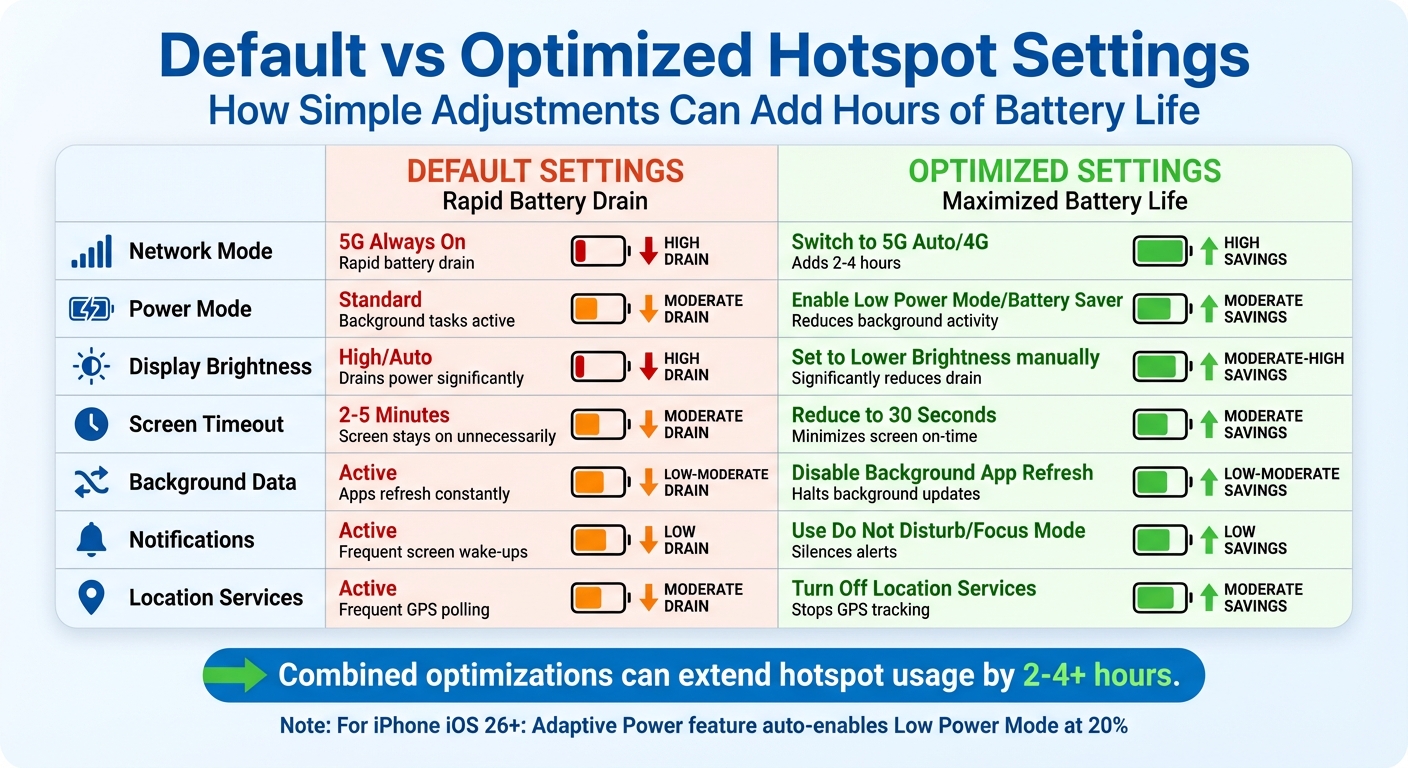
Default vs Optimized Hotspot Settings Battery Impact Comparison
Most smartphones are designed to prioritise speed and performance, often at the expense of battery life. By default, settings like constant 5G connectivity, high screen brightness, and active background processes can drain your battery quickly, especially when using your device as a hotspot. However, tweaking these settings can help you squeeze several extra hours of use out of your phone.
One of the simplest and most effective changes is switching from "5G On" to "5G Auto" or manually selecting 4G/LTE. If 5G isn’t providing a noticeable benefit, your phone will automatically fall back to LTE, which conserves battery life significantly – particularly in areas with weak 5G signals. This single adjustment can add 2–4 hours of hotspot usage. Enabling Low Power Mode or Battery Saver is another smart move, as it limits background tasks and reduces visual effects to save energy.
Beyond network settings, display and notification adjustments can also make a big difference. Default screen timeouts (typically set to 2–5 minutes) and high brightness levels are major culprits for battery drain. Reducing screen timeout to 30 seconds and lowering brightness to below 25% can lead to noticeable savings. Similarly, turning on Do Not Disturb or Focus Mode prevents the screen from constantly lighting up for notifications, further conserving power.
Hotspot Settings Comparison Table
Here’s a side-by-side look at how default and optimised settings impact battery life:
| Setting | Default Impact | Optimised Adjustment | Estimated Battery Savings |
|---|---|---|---|
| Network Mode | 5G Always On: Rapid battery drain | Switch to 5G Auto/4G | High (Adds 2–4 hours) |
| Power Mode | Standard: Background tasks remain active | Enable Low Power Mode/Battery Saver | Moderate (Reduces background activity) |
| Display Brightness | High/Auto: Drains power significantly | Set to Lower Brightness manually | Moderate to High |
| Screen Timeout | 2–5 Minutes: Screen stays on unnecessarily | Reduce to 30 Seconds | Moderate |
| Background Data | Active: Apps refresh constantly | Disable Background App Refresh | Low to Moderate |
| Notifications | Active: Frequent screen wake-ups | Use Do Not Disturb/Focus Mode | Low |
| Location Services | Active: Frequent GPS polling | Turn Off Location Services | Moderate |
For iPhone users running iOS 26 or later, there’s even more good news. The Adaptive Power feature automatically enables Low Power Mode when your battery drops to 20%, working in tandem with your manual adjustments to stretch battery life further during prolonged hotspot use.
Conclusion
Using your mobile device as a hotspot can be a major drain on battery life. This happens because your phone juggles several power-hungry tasks at once. In fact, studies suggest that hotspot use can cut battery life by up to 65% compared to regular usage. By understanding these challenges, you can take steps to manage your device more effectively.
Small changes can make a big difference. For example, switching from 5G to 4G/LTE can reduce battery consumption, especially in areas with poor signal strength. Adjusting settings like screen brightness, screen timeout, and enabling power-saving modes also helps conserve energy. Another useful tip is to use USB tethering, which not only shares your connection but also charges your device at the same time. These tweaks can lead to a smoother and more efficient hotspot experience.
For frequent travellers or professionals on the go, choosing the right connectivity option is key. Providers like ZIM Connections offer dependable solutions that minimise the battery-draining "signal hunting" process, ensuring your device maintains a stable connection without unnecessary power loss.
FAQs
How can I reduce battery drain when using my phone as a hotspot?
Using your phone as a hotspot can drain its battery faster than usual, but a few tweaks can help you make it last longer. Start by disabling features you don’t need, like Bluetooth, NFC, or location services, as these can quietly consume energy in the background. Lowering your screen brightness and setting the screen timeout to 30 seconds or less can also help conserve power.
Keep the number of connected devices to a minimum, and if your phone allows it, reduce the Wi-Fi range to save even more battery. Enabling features like Low Power Mode or Adaptive Battery can optimise your phone’s performance for longer use. It’s also a good idea to ensure your phone stays cool and to use the original charger, as overheating can cause your battery to drain even faster.
For a more reliable connection that avoids unnecessary signal searching, consider using a high-quality eSIM data plan, such as those from ZIM Connections. By following these tips, you can extend your phone’s hotspot usage while keeping battery drain under control.
How does switching from 5G to 4G help save battery life when using a hotspot?
Switching to 4G can help conserve battery life since 4G networks generally use less power compared to 5G, especially in areas where the signal is weak or if you’re using an older device. The reason? Maintaining a stable 5G connection often demands more energy, particularly when it works alongside networks like LTE or 3G.
By sticking to 4G, your device sidesteps the power-hungry task of managing dual-network connections. This makes it a smarter choice for hotspot use and helps stretch your battery life further.
What are the advantages of using an eSIM with strong hotspot functionality?
Using an eSIM with reliable hotspot functionality makes sharing your mobile data incredibly straightforward – no extra gadgets required. Since the eSIM is integrated into your phone, you can effortlessly enable the hotspot through your settings and switch between regional or global plans to secure the best 4G or 5G signal, no matter where you are. This is a game-changer for frequent travellers who rely on steady internet access while on the move.
A well-designed hotspot feature also helps conserve battery life. By automatically connecting to efficient networks and keeping the Wi-Fi range focused, your phone uses less power compared to struggling with weak signals or relying on separate hotspot devices. Simple settings, like adjusting the Wi-Fi range, let you maximise battery life while still keeping your other devices online.
ZIM Connections’ eSIM plans come with hotspot support, offering high-speed 5G/4G coverage and zero roaming fees. Whether you’re travelling across the UK or internationally, a single activation keeps you connected. It’s a perfect fit for business travellers and remote workers who need reliable, no-fuss internet access.